
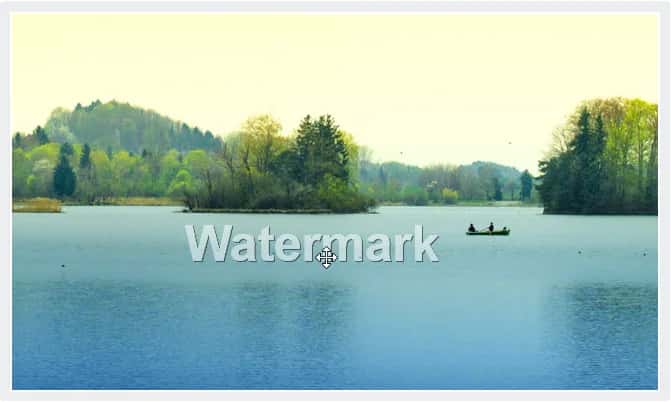
Watermark is a message that may be a logo, signature, or stamp that is used to recognize the ownership of the creator. It visualizes the logo without interpreting the visibility of the image. These watermarks are used by most of the organizations, professionals before sharing their content in public platforms to prevent other people from using it.
In this article, we will demonstrate how to create a watermark on the original image through the logo and text.
Topics covered in this article:
- Creating watermark using an image
- Defining the transparent function
- Defining function to add image
- Creating watermark using text
- Importing PIL function
- Adjusting the position of the text
So, now we will start adding the watermark to the image using the below implementation in which we will use the OpenCV library of python.
Creating watermark using an image
Step-1: Importing required libraries and loading the images.
import cv2
from google.colab.patches import cv2_imshow
image_1= cv2.imread('/content/images(10).jpg')
image_2=cv2.imread(’/content/images_logo(11).jpg’)
cv2_show(image_1)

cv2_show(image_2)

In the above output, we displayed the logo and original image, in further demonstrations we will be using these images to create a watermark. The second image was downloaded from this link.
Step-2: Defining a preprocessing function
Using the below code snippet we can set the position of our logo on the image. using h, w, _ = overlay.shape y we get the shape of the image based on this snippet, x = pos[0], pos[0] we can assign values.
def preprocessing(src, overlay, pos=(0, 0), scale=1):
overlay = cv2.resize(overlay, (0, 0), fx=scale, fy=scale)
h, w, _ = overlay.shape
rows, cols, _ = src.shape
y, x = pos[0], pos[0]
Here we are using for loop, to apply the blend equation to all pixels in the image
for i in range(h):
for j in range(w):
if x + i >= rows or y + j >= cols:
continue
alpha = float(overlay[i][j][0] / 255.0)
src[x + i][y + j] = alpha * overlay[i][j][:3] + (1 - alpha)*src[x + i][y + j]
return src
Step-3: Defining function to create watermark
def watermark(Logo_img,original_img,opacity,pos=(100,10),):
opacity = opacity / 100
Img1 = cv2.imread(original_img, -1)
Img2 = cv2.imread(Logo_img, -1)
final = Img1.copy()
print(final.shape)
overlay = transparentOverlay(final,Img2, pos)
output = Img1.copy()
cv2.addWeighted(overlay, opacity, output, 1 - opacity, 0, output)
cv2_imshow(output)
Step-4: The main function to display output
Using the below code snippet, we will add the original image, logo, opacity, and position of the logo on our original image.
watermark(image_1,image_2,100,(100,10))

As we can see in the above output, we added a logo on the top left in the image.
Creating watermark on the image using text
Using the below code snippet, we will give our image as an input and a text to display a watermark on the image. By assigning a value to margin we can adjust the position of the text in the image.
from PIL import Image, ImageDraw, ImageFont
original_img = Image.open('/content/download (17).jpg')
width, height = original_img.size
draw = ImageDraw.Draw(original_img)
text = "[email protected]"
textwidth, textheight = draw.textsize(text)
margin = 10
x = width - textwidth - margin
y = height - textheight - margin
draw.text((x, y), text)
original_img.show()
img = im.save('/content/Untitled Folder.png')

Conclusion
In the above article, we demonstrated how to add an image as a watermark to our images and how to add a text as a watermark on our image using OpenCV library of python.
- From Humanoid Robots to Telecom Trials, 12 Major Announcements at NVIDIA GTC Berlin 2026
- Anyone Can Make a Robot Move, Few Can Make It Stop
- After ISRO’s PSLV Failure, TakeMe2Space Looks to SpaceX for Reliable Launch
- Why AI Agents are the Next Frontier in Quantum Security
- Physical AI Squeezes Labour Market, And Low-Skilled Immigrant Jobs May Be First to Fall
- Rocket Math Isn’t Mathing: Why India’s Space Launches are Expensive