
5 min
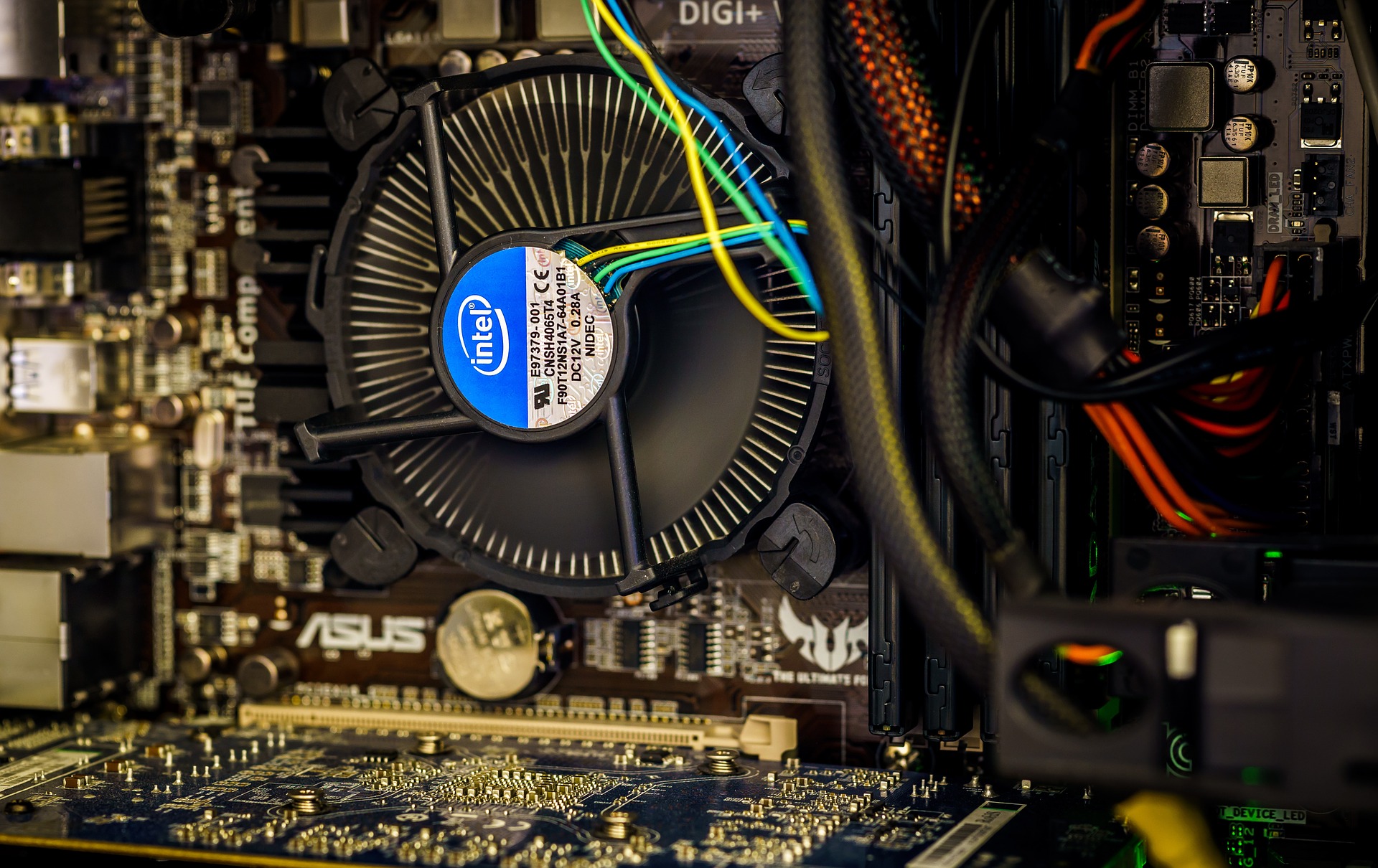
- Motherboard: Gigabyte Z370
- GPU: GeForce Gtx 1080 Ti
- Processor: Intel Core i5 8600K
- RAM: Corsair Vengeance LPX 16GB 2x8GB DDR4
- Power Supply Unit: Corsair 600W
Choosing The OS
If you come from a software background you will know that a Linux machine can be your best work buddy. We will stick with Ubuntu Server 16.04 LTS as it provides the best support for the softwares that follow.- Download your Ubuntu from here.
- If you are choosing the Ubuntu Desktop version instead of Ubuntu server you will need to switch to console mode manually.
- Making Bootable Disk: This is a fairly simple step. Have your USB stick by your side and follow the simple instructions provided here.
- Install the OS with the Bootable USB: This is a straightforward step for anyone who uses a computer fairly. All you need to do is to follow some simple steps. You can find plenty of materials online to get this part done. Restart your system once the installation is complete.
Installing Software Stack for Deep Learning
Before proceeding to install the Nvidia drivers, we must make sure to remove or disable the nouveau driver which is the default driver in Ubuntu. Although we have our GeForce Gtx 1080 Ti inside the box, our machine still uses the inbuilt card that comes with the motherboard. To activate our graphics card we need to install the drivers.Installing CUDA
CUDA 10 is the latest version however, we recommend that you stick with the CUDA 9 to avoid dependency issues with cuDNN and Tensorflow Follow the links below for instructions:- Before installing check your device and OS compatibility.
- Download the installer for the OS and follow the instructions
- Perform the post-installation actions
Installing cuDNN
- Create a free Nvidia developers account
- Download cuDNN specified for your CUDA and Ubuntu versions.
- Runtime Library
- Developer Library
- Code Samples and User Guide
- Follow steps 2.3.2 and 2.4 from here
Installing TensorFlow
Follow the instructions here to install TensorFlow in your machine. Make sure to choose the GPU enabled version that is compatible with the versions of CUDA,cuDNN and Ubuntu that we have already installed in our machine.Installing Jupyter Notebook
Install Jupyter Notebook in your Deep Learning Machine using pip
Type in the following commands in the terminal:- python3 -m pip install --upgrade pip
- python3 -m pip install jupyter
- jupyter notebook
Setting up Remote Access
Enabling SSH
To access your machine remotely enable SSH in your machine by installing OpenSSH.Follow the Instructions here.Accessing Jupyter Note remotely
Run Jupyter Notebook in your Deep Learning Machine- jupyter notebook --no-browser --port=8889
- ssh -N -L localhost:8888:localhost:8889 user@serverip
- AI Can Be Cyborg or Centaur. But Can Enterprises Monetise It?
- AMD’s Server CPU Business Faces a New AI Boom
- How an Engineer Is Using AI to Bridge the Accessible Education Gap
- AI Agents are Making Human Customer Service a Specialist Job
- Why Nandan Nilekani-Backed F2A Believes India's Investment Opportunity Lies in Edge AI
- India Needs to Build the AI 'Brain' for Robotics, Not Just Import Hardware