
5 min
The aim behind this blog post is to introduce open source business intelligence technologies and explore data using open source technologies like D3.js, DC.js, Node JS and MongoDB.
Over the span of this post we will see the importance of the various components that we are using and we will do some code based customization as well.
The Need for Visualization:
Visualization is the so called front-end of modern business intelligence systems. I have been around in quite a few big data architecture discussions and to my surprise I found that most of the discussions are focused on the backend components: the repository, the ingestion framework, the data mart, the ETL engine, the data pipelines and then some visualization.
I might be biased in favor of the visualization technologies as I have been working on them for a long time. Needless to say visualization is as important as any other component of a system. I hope most of you will agree with me on that. Visualization is instrumental in inferring the trends from the data, spotting outliers and making sense of the data-points.
What they say is right, a picture is indeed worth a thousand words.
The components of our analysis and their functions:
D3.js: A JavaScript based visualization engine which will render interactive charts and graphs based on the data.
Dc.js: A JavaScript based wrapper library for D3.js which makes plotting the charts a lot easier.
Crossfilter.js: A JavaScript based data manipulation library. Works splendid with dc.js. Enables two way data binding.
Node JS: Our powerful server which serves data to the visualization engine and also hosts the webpages and javascript libraries.
Mongo DB: The resident No-SQL database which will serve as a fantastic data repository for our project.
The Steps to Success:
 STEP 1: Identifying our Analysis
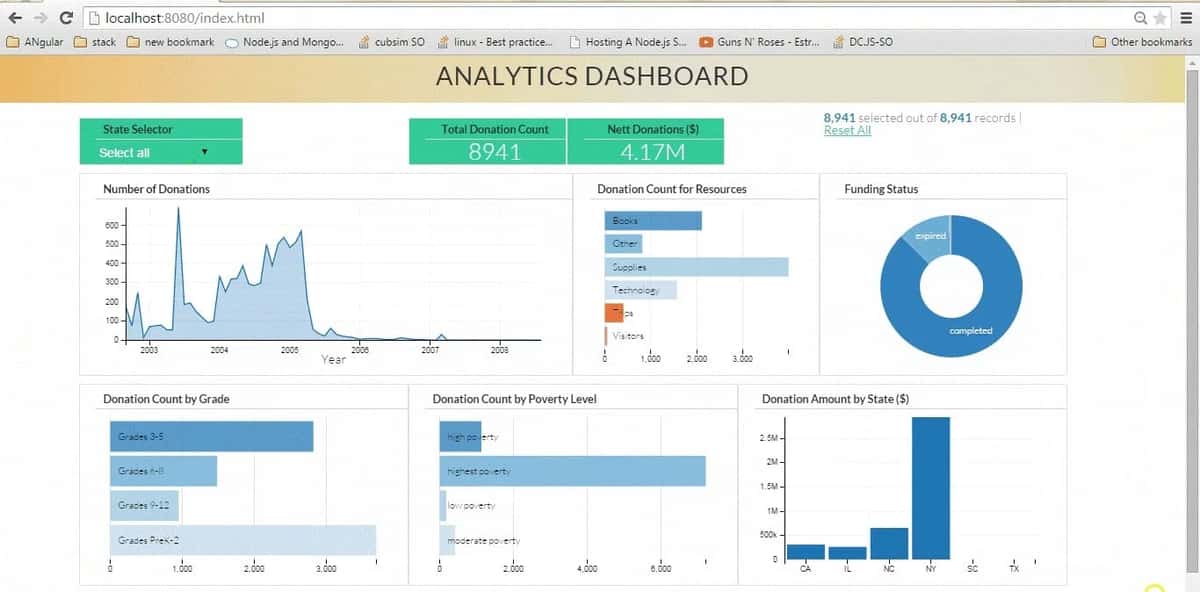
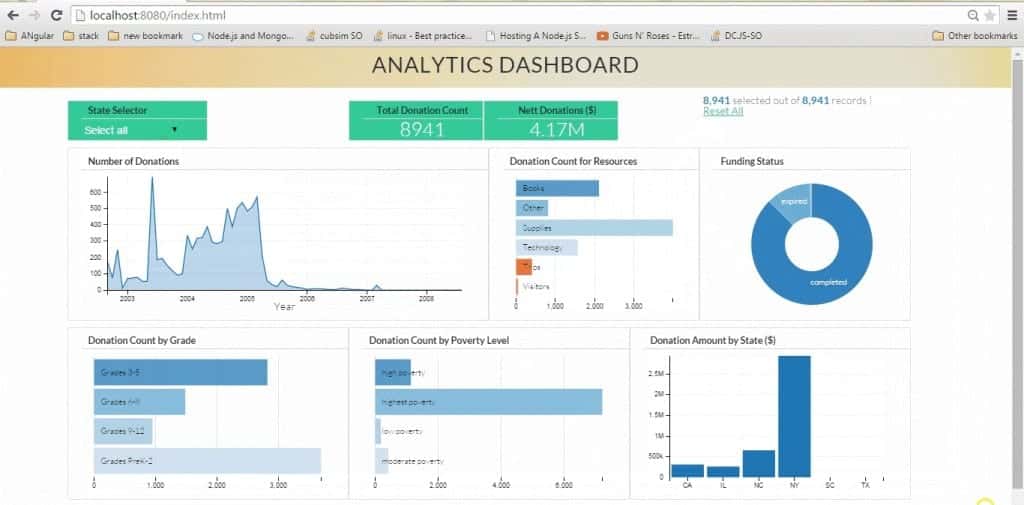
We will be analyzing data from DonorsChoose.org, which is a US based non profit organization that allows individuals to donate money directly to public school classroom projects. We will get the dataset and try to create an informative analysis on the basis of the data attributes. We will have more clarity on this once we actually see the data set. I have taken a subset of the original data set for our analysis purposes. This dataset contains nearly 9000 rows.
Step 2: Fetching the data and storing it in MongoDB
The original dataset from DonorsChoose.org is available here. For our project we will be using a portion of the “Project” dataset. I have chosen this data as i am somewhat familiar with it. The “Project” dataset contains datapoints for the classroom projects data available with DonorsChoose.org. I have intentionally used a small subset of the data so that we can focus on getting the charts done quickly rather than waiting for the data to be fetched each time we refresh. That said, you can always ingest the original dataset once you have mastered this post. To download the required dataset click here.
Unzip the rar file to your desktop or a suitable directory.
After unzipping the downloaded file, we get a file named sampledata.csv with a size around 3 megabytes.The data is in csv (comma separated value) format. CSV files are a popular option for storing data in a tabular format. CSV files are easy ti interpret and parse. The file contains nearly 9,000 records and 44 attributes which we can use for our analysis.
Let’s Install MongoDB. I am using a windows environment but the process is nearly similar on all platforms. The installation manuals can be found here. For the windows environment open your command prompt, Go to the folder where you installed mongodb and locate the bin folder. In my case the path is:
C:\Program Files\MongoDB\Server\3.0\bin>
Fire up your mongoDB by running mongod.exe. Leave the prompt running as it is and open another command prompt and navigate to the bin directory again. Enter this command
C:\Program Files\MongoDB\Server\3.0\bin>mongoimport -d donorschoose -c projects --type csv --headerline --file C:\Users\Anmol\Desktop\sampledata\sampledata.csv
You will see mongodb importing the data points from our data set into the database. This process might take some time.
While we are at it, i would strongly recommend using Robomongo in case you are going to work with MongoDB on a regular basis. Robomongo is a GUI based mongoDB management tool. Install robomongo and open it. Create a new connection and enter localhost as the address and 27017 as the password and click save. Connect to this instance in the next screen that you get. The robomongo shell will look something like this:
STEP 1: Identifying our Analysis
We will be analyzing data from DonorsChoose.org, which is a US based non profit organization that allows individuals to donate money directly to public school classroom projects. We will get the dataset and try to create an informative analysis on the basis of the data attributes. We will have more clarity on this once we actually see the data set. I have taken a subset of the original data set for our analysis purposes. This dataset contains nearly 9000 rows.
Step 2: Fetching the data and storing it in MongoDB
The original dataset from DonorsChoose.org is available here. For our project we will be using a portion of the “Project” dataset. I have chosen this data as i am somewhat familiar with it. The “Project” dataset contains datapoints for the classroom projects data available with DonorsChoose.org. I have intentionally used a small subset of the data so that we can focus on getting the charts done quickly rather than waiting for the data to be fetched each time we refresh. That said, you can always ingest the original dataset once you have mastered this post. To download the required dataset click here.
Unzip the rar file to your desktop or a suitable directory.
After unzipping the downloaded file, we get a file named sampledata.csv with a size around 3 megabytes.The data is in csv (comma separated value) format. CSV files are a popular option for storing data in a tabular format. CSV files are easy ti interpret and parse. The file contains nearly 9,000 records and 44 attributes which we can use for our analysis.
Let’s Install MongoDB. I am using a windows environment but the process is nearly similar on all platforms. The installation manuals can be found here. For the windows environment open your command prompt, Go to the folder where you installed mongodb and locate the bin folder. In my case the path is:
C:\Program Files\MongoDB\Server\3.0\bin>
Fire up your mongoDB by running mongod.exe. Leave the prompt running as it is and open another command prompt and navigate to the bin directory again. Enter this command
C:\Program Files\MongoDB\Server\3.0\bin>mongoimport -d donorschoose -c projects --type csv --headerline --file C:\Users\Anmol\Desktop\sampledata\sampledata.csv
You will see mongodb importing the data points from our data set into the database. This process might take some time.
While we are at it, i would strongly recommend using Robomongo in case you are going to work with MongoDB on a regular basis. Robomongo is a GUI based mongoDB management tool. Install robomongo and open it. Create a new connection and enter localhost as the address and 27017 as the password and click save. Connect to this instance in the next screen that you get. The robomongo shell will look something like this:
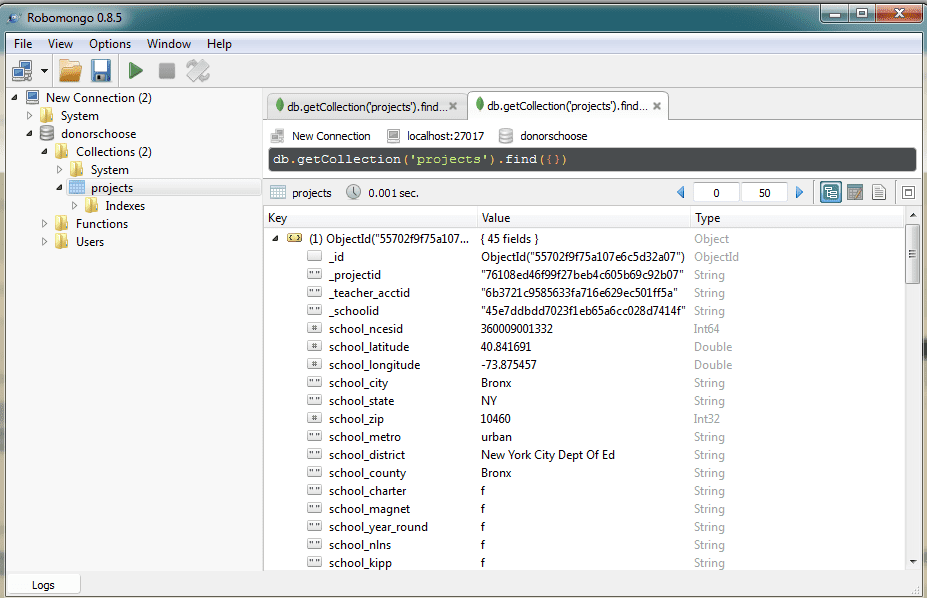 Navigate to the projects collection and double click on it to see a list of the datapoints. Click on the tiny expand arrow on the data points list to see the full list of attributes for the document. These are the attributes (columns) that we just imported from our dataset. We will be using the following attributes for our analysis:
- Identifying what our analysis will do
- Fetching the data and storing it in MongoDB
- Creating a Node.js server to get data from MongoDB and host it as an API
- Building our frontend using D3.js, Dc.js and some good old JavaScript.
 STEP 1: Identifying our Analysis
We will be analyzing data from DonorsChoose.org, which is a US based non profit organization that allows individuals to donate money directly to public school classroom projects. We will get the dataset and try to create an informative analysis on the basis of the data attributes. We will have more clarity on this once we actually see the data set. I have taken a subset of the original data set for our analysis purposes. This dataset contains nearly 9000 rows.
Step 2: Fetching the data and storing it in MongoDB
The original dataset from DonorsChoose.org is available here. For our project we will be using a portion of the “Project” dataset. I have chosen this data as i am somewhat familiar with it. The “Project” dataset contains datapoints for the classroom projects data available with DonorsChoose.org. I have intentionally used a small subset of the data so that we can focus on getting the charts done quickly rather than waiting for the data to be fetched each time we refresh. That said, you can always ingest the original dataset once you have mastered this post. To download the required dataset click here.
Unzip the rar file to your desktop or a suitable directory.
After unzipping the downloaded file, we get a file named sampledata.csv with a size around 3 megabytes.The data is in csv (comma separated value) format. CSV files are a popular option for storing data in a tabular format. CSV files are easy ti interpret and parse. The file contains nearly 9,000 records and 44 attributes which we can use for our analysis.
Let’s Install MongoDB. I am using a windows environment but the process is nearly similar on all platforms. The installation manuals can be found here. For the windows environment open your command prompt, Go to the folder where you installed mongodb and locate the bin folder. In my case the path is:
C:\Program Files\MongoDB\Server\3.0\bin>
Fire up your mongoDB by running mongod.exe. Leave the prompt running as it is and open another command prompt and navigate to the bin directory again. Enter this command
C:\Program Files\MongoDB\Server\3.0\bin>mongoimport -d donorschoose -c projects --type csv --headerline --file C:\Users\Anmol\Desktop\sampledata\sampledata.csv
You will see mongodb importing the data points from our data set into the database. This process might take some time.
While we are at it, i would strongly recommend using Robomongo in case you are going to work with MongoDB on a regular basis. Robomongo is a GUI based mongoDB management tool. Install robomongo and open it. Create a new connection and enter localhost as the address and 27017 as the password and click save. Connect to this instance in the next screen that you get. The robomongo shell will look something like this:
STEP 1: Identifying our Analysis
We will be analyzing data from DonorsChoose.org, which is a US based non profit organization that allows individuals to donate money directly to public school classroom projects. We will get the dataset and try to create an informative analysis on the basis of the data attributes. We will have more clarity on this once we actually see the data set. I have taken a subset of the original data set for our analysis purposes. This dataset contains nearly 9000 rows.
Step 2: Fetching the data and storing it in MongoDB
The original dataset from DonorsChoose.org is available here. For our project we will be using a portion of the “Project” dataset. I have chosen this data as i am somewhat familiar with it. The “Project” dataset contains datapoints for the classroom projects data available with DonorsChoose.org. I have intentionally used a small subset of the data so that we can focus on getting the charts done quickly rather than waiting for the data to be fetched each time we refresh. That said, you can always ingest the original dataset once you have mastered this post. To download the required dataset click here.
Unzip the rar file to your desktop or a suitable directory.
After unzipping the downloaded file, we get a file named sampledata.csv with a size around 3 megabytes.The data is in csv (comma separated value) format. CSV files are a popular option for storing data in a tabular format. CSV files are easy ti interpret and parse. The file contains nearly 9,000 records and 44 attributes which we can use for our analysis.
Let’s Install MongoDB. I am using a windows environment but the process is nearly similar on all platforms. The installation manuals can be found here. For the windows environment open your command prompt, Go to the folder where you installed mongodb and locate the bin folder. In my case the path is:
C:\Program Files\MongoDB\Server\3.0\bin>
Fire up your mongoDB by running mongod.exe. Leave the prompt running as it is and open another command prompt and navigate to the bin directory again. Enter this command
C:\Program Files\MongoDB\Server\3.0\bin>mongoimport -d donorschoose -c projects --type csv --headerline --file C:\Users\Anmol\Desktop\sampledata\sampledata.csv
You will see mongodb importing the data points from our data set into the database. This process might take some time.
While we are at it, i would strongly recommend using Robomongo in case you are going to work with MongoDB on a regular basis. Robomongo is a GUI based mongoDB management tool. Install robomongo and open it. Create a new connection and enter localhost as the address and 27017 as the password and click save. Connect to this instance in the next screen that you get. The robomongo shell will look something like this:
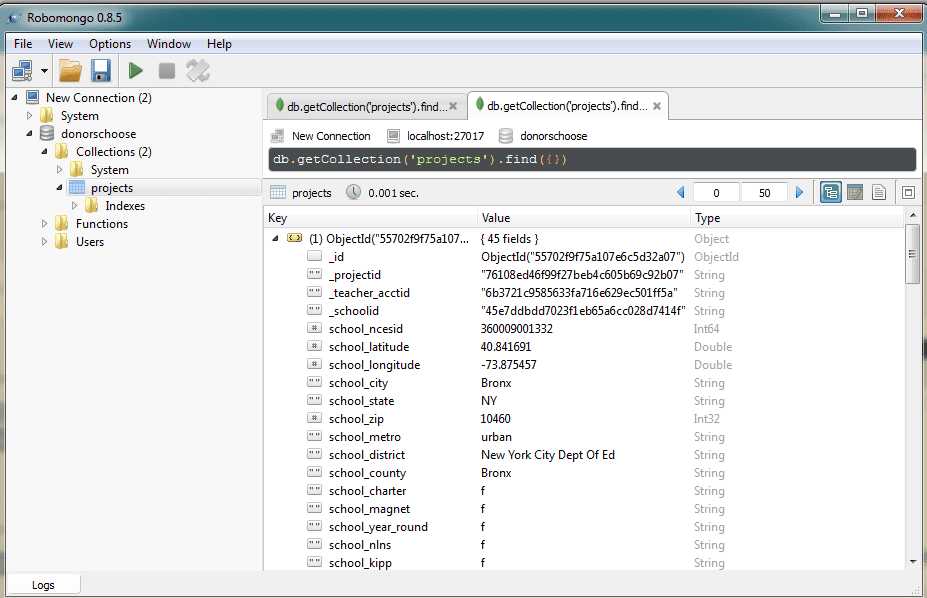 Navigate to the projects collection and double click on it to see a list of the datapoints. Click on the tiny expand arrow on the data points list to see the full list of attributes for the document. These are the attributes (columns) that we just imported from our dataset. We will be using the following attributes for our analysis:
- school_state
- resource_type
- poverty_level
- date_posted
- total_donations
- funding_status
- grade_level
- Building our frontend using D3.js,Dc.js and some good old JavaScript.
- India’s GCCs to Add 1.4 Million Jobs, Drive 170 Million Sq. Ft. Office Demand by 2031
- AI Can Be Cyborg or Centaur. But Can Enterprises Monetise It?
- AMD’s Server CPU Business Faces a New AI Boom
- How an Engineer Is Using AI to Bridge the Accessible Education Gap
- AI Agents are Making Human Customer Service a Specialist Job
- Why Nandan Nilekani-Backed F2A Believes India's Investment Opportunity Lies in Edge AI