
5 min
-- USE CASE: CALCULATE SELLING PRICE OF MY HO-- USE
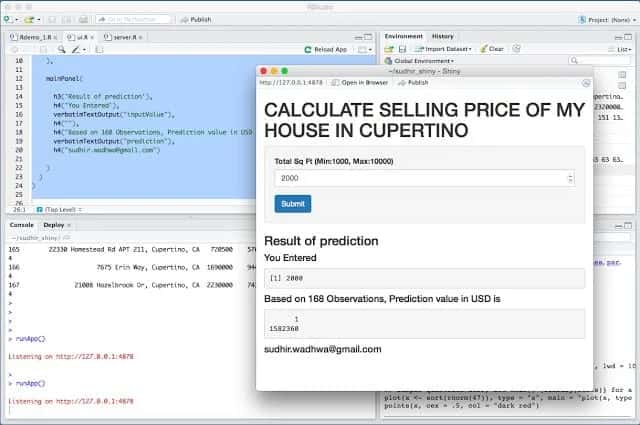
Jim has a 4 bedrooms and 3 bathrooms house in Cupertino, CA, USA. He wants to sell the house and move to Florida. Some friends are telling him that he can get as much as $2.2 Million USD, but Jim's best friend is telling him that he can only get $1.7 million for 2,769 Sq ft house in Cupertino. Jim is in trouble. That is roughly 1/2 million dollars.
So we asked jim to give it a try : https://sudhirwadhwa.shinyapps.io/sudhir_shiny/
Jim gave an input of 2,769 Sq ft and got suggested sale price should be $2,036,417
 First here is the complete code for 2 files: Server. R and ui.R
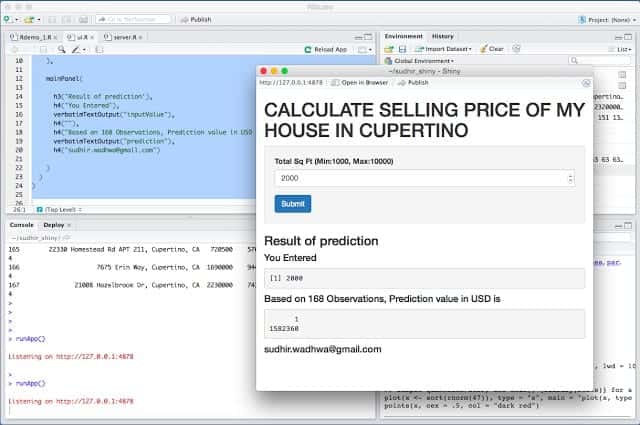 Now , I will explain how you can write the App step by step:
 First here is the complete code for 2 files: Server. R and ui.R
ui.R
this is UI for the Shiny App
May 26, 2015 , 8 34 PM PST
shinyUI( pageWithSidebar( headerPanel ("CALCULATE SELLING PRICE OF MY HO-- USE IN CUPERTINO"), sidebarPanel ( numericInput('TotalSqft', 'Total Sq Ft (Min:1000, Max:10000)', 2000 , min=1000, max=9000, step=50), submitButton('Submit') ), mainPanel( h3('Result of prediction'), h4('You Entered'), verbatimTextOutput("inputValue"), h4(""), h4("Based on 168 Observations, Prediction value in USD is "), verbatimTextOutput("prediction"), h4("[email protected]") ) ) )server.R
This is Server file for Shiny App
[email protected] , May 26, 2015 , 8 34 PM PST
pricePredict <- font="" function="" otalsqft=""> trainingdataset_cupertino <- file="trainingdataset_cupertino.csv" font="" head="TRUE,sep=" read.csv=""> fit1 <- data="trainingdataset_cupertino) pre1<-predict fit1="" font="" newdata="data.frame(TotalSqft)"> pre1 } shinyServer ( function(input, output) { output$inputValue <- font="" input="" otalsqft="" renderprint=""> output$prediction <- font="" input="" otalsqft="" pricepredict="" renderprint=""> } ) Let's run this first using RStudio or R , create these two files ui.R and server.R and just use runApp() This will open an App on you local desktop and you can use the App. I will soon show you, how to publish this App using Shiny so others can use it ( without understanding and worrying about R or Shiny)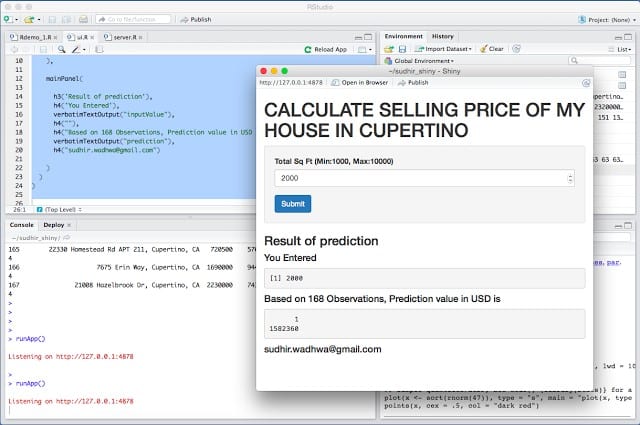 Now , I will explain how you can write the App step by step:
- Collect the Data Required to build the App. In my case, I created a csv file of 168 houses sold in last one year in Cupertino, CA , 95014 zipcode ( hey if you want to play with my code , you can request for csv file - email me @ [email protected] and I will send .csv file)
- Install R. http://cran.r-project.org/bin/macosx/
- Install R Studio
- Let's understand the ui.R first
- Now Let's understand how server.Ris recommending value of $2,036,417 for Jim's house.
trainingdataset_cupertinoAddress USD PerSqft Beds Baths TotalSqft Date 1 22057 Mcclellan Rd, Cupertino, CA 960000 65 2 2.0 994 3/3/15 2 10227 S Foothill Blvd, Cupertino, CA 1590000 926 4 3.0 1717 3/3/15 3 22067 San Fernando Ct, Cupertino, CA 2300000 1,029 4 3.0 2234 3/3/15 4 20488 Stevens Creek Blvd APT 1318, Cupertino, CA 685000 839 1 1.0 816 3/2/15 5 19999 Stevens Creek Blvd UNIT 307, Cupertino, CA 910000 763 2 2.0 1192 2/27/15 6 20222 Northcove Sq, Cupertino, CA 595000 560 1 1.0 1062 2/27/15 7 10315 Stydale Dr, Cupertino, CA 2320000 924 5 3.0 2510 2/24/15 8 7538 De Foe Dr, Cupertino, CA 1600000 1,264 3 2.0 1265 2/24/15 9 10501 Florence Dr, Cupertino, CA 2800000 1,065 4 3.0 2629 2/20/15 10 21675 Olive Ave, Cupertino, CA 1350000 873 4 3.0 1546 2/20/15 Observe the fields ( features or called predictors) - Address , USD , PerSqft, Beds and Baths , TotalSqft and Date the property was old. I am just showing 10 rows. My dataset actually has 167 observations ( Rows).
- Now you have the trainingdataset_cupertino data frame. Let's write a simple linear regression model
- AMD’s Server CPU Business Faces a New AI Boom
- How an Engineer Is Using AI to Bridge the Accessible Education Gap
- AI Agents are Making Human Customer Service a Specialist Job
- Why Nandan Nilekani-Backed F2A Believes India's Investment Opportunity Lies in Edge AI
- India Needs to Build the AI 'Brain' for Robotics, Not Just Import Hardware
- Why Enterprise AI Prototypes Break in Production