

Darknet is a framework for real-time object detection. Darknet is an open-source neural network framework and is written in C and CUDA. A major reason it is used widely is that it is highly accurate and very fast. The reason for Darknet to be fast is because it is written in C and CUDA. Darknet supports CPU and GPU computations so it integrates better with your system and works accordingly.
If you are reading this, it means you are facing issues, the same problem which many Windows 10 users have faced. Already complications of Deep Learning are not enough we windows users have to face this new problem. Installing Darknet on the Windows system. And if this is not enough you will not find any proper YouTube videos or website which will tell you what to do and how.
After spending different tutorials, from different sources and failing several times, I finally succeeded. So here are the simple steps I followed to install Darknet in my windows 10 system.
Step 1: This is the most common step you will find in any tutorial. Clone Darknet git repo for windows by AlexeyAB.
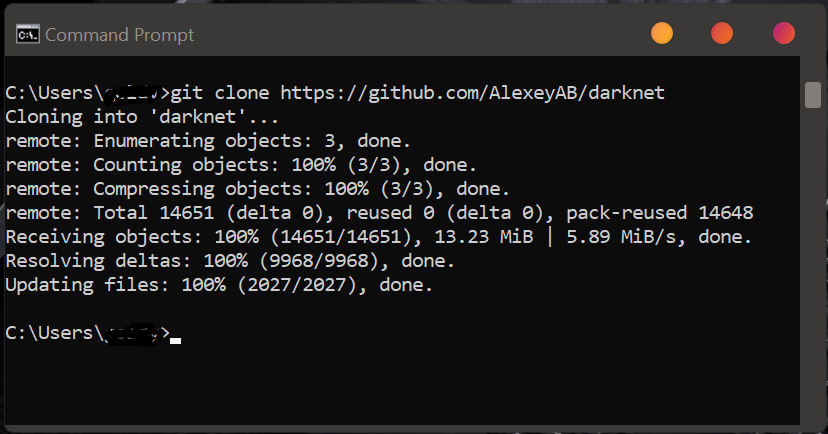
If you have git installed you can open command prompt and run command:
git clone https://github.com/AlexeyAB/darknet
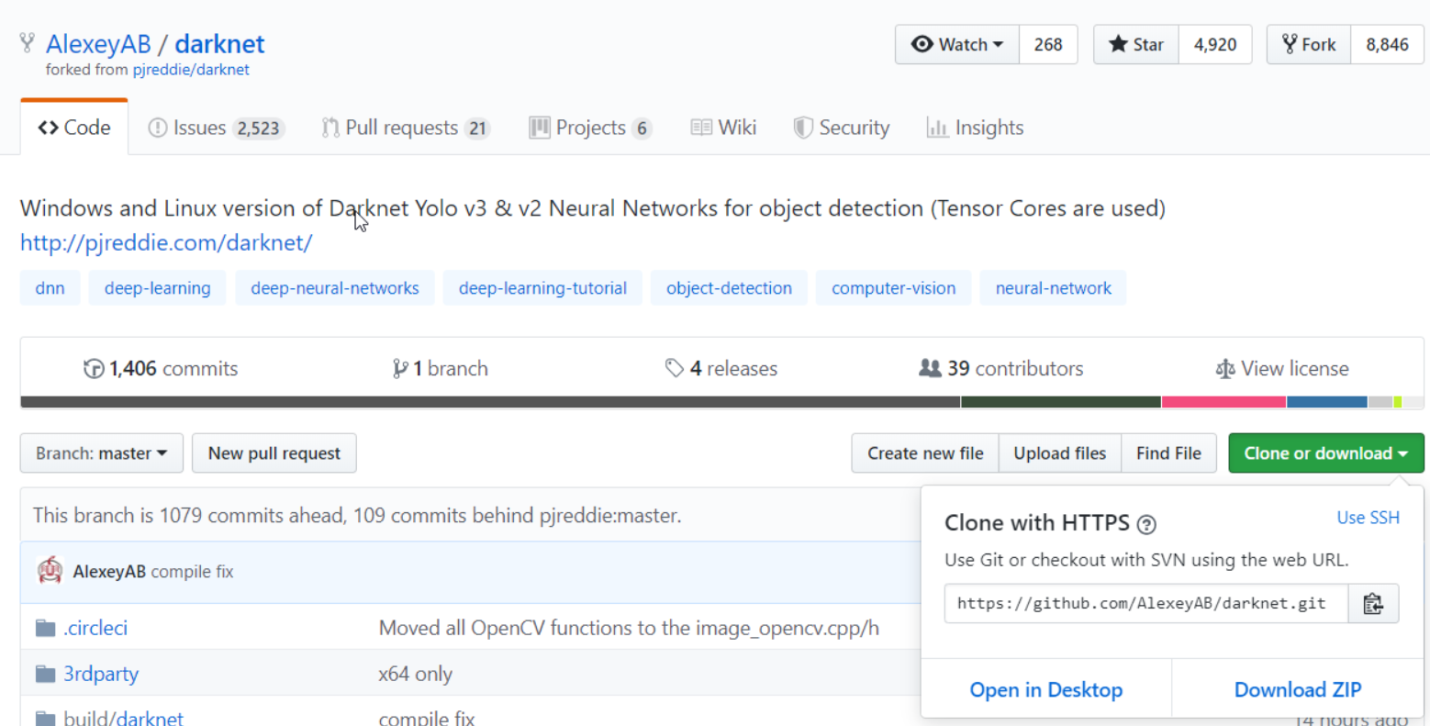
If you don’t have git installed you can open above link and download zip and unzip (screenshot shared below)
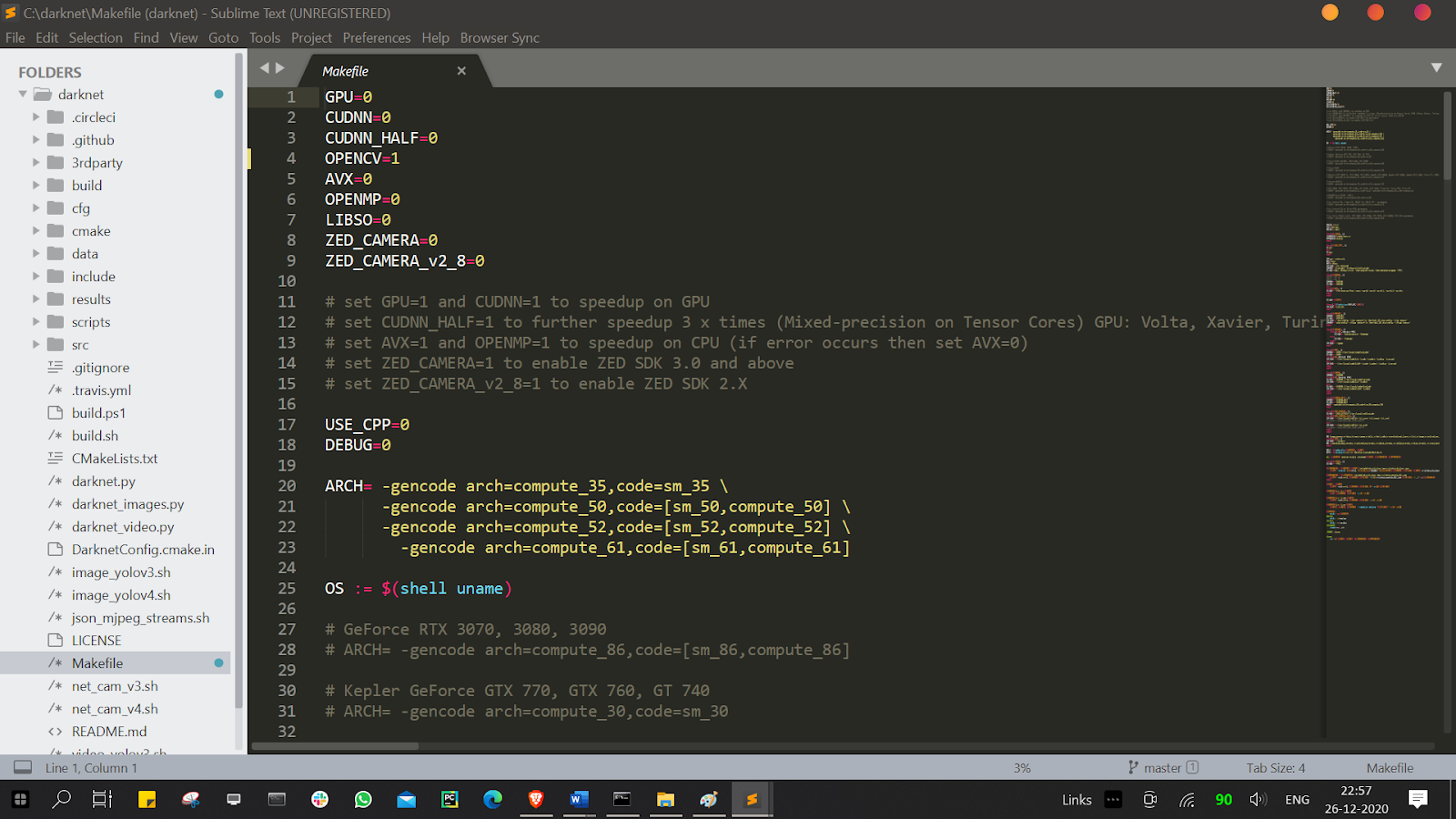
Step 2: Open the Makefile in unzipped/downloaded folder darknet-master and change OPENCV=1 and save it.
Step 3: Go to https://sourceforge.net/projects/opencvlibrary/files/opencv-win/3.3.0/opencv-3.3.0-vc14.exe/download and Download OpenCV
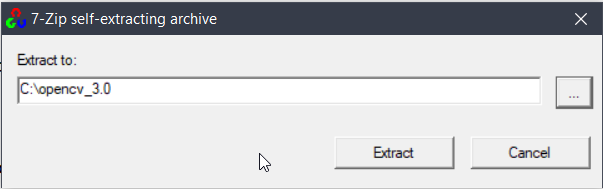
Create a folder named opencv_3.0 in C drive, double click the .exe file downloaded and unzip it in opencv_3.0 folder.
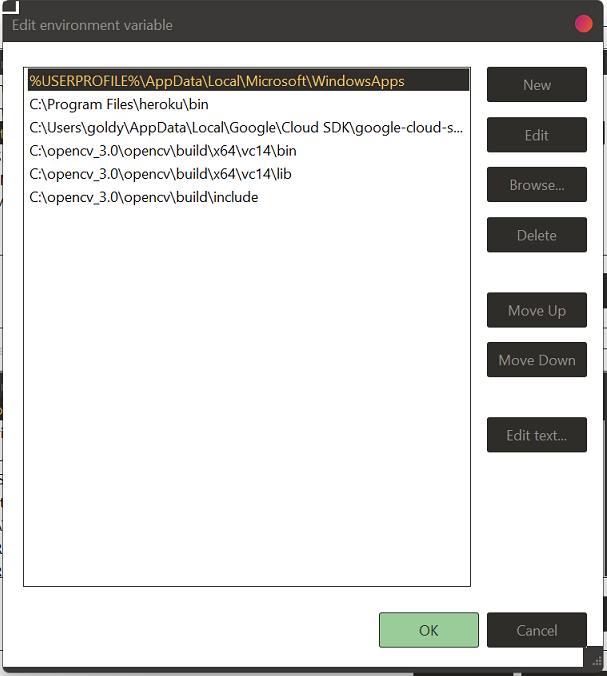
After this step add the following path to Environment Variables (Just for sanity check, copy these paths from your system.)
C:\opencv_3.0\opencv\build\include
C:\opencv_3.0\opencv\build\x64\vc14\lib
C:\opencv_3.0\opencv\build\x64\vc14\bin
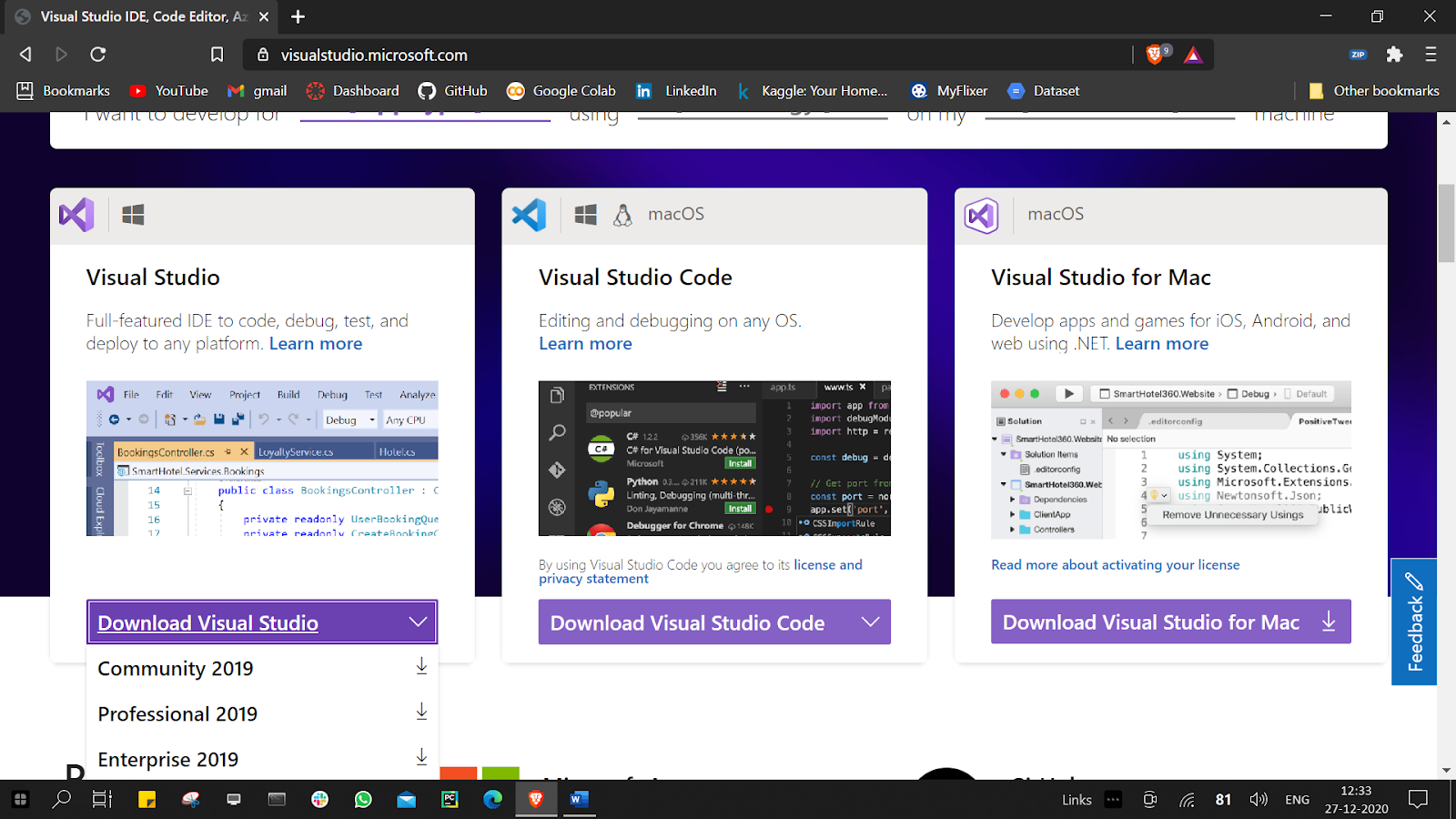
Step 4: Download and Install Microsoft Visual Studio Community Edition 2019 from following link:
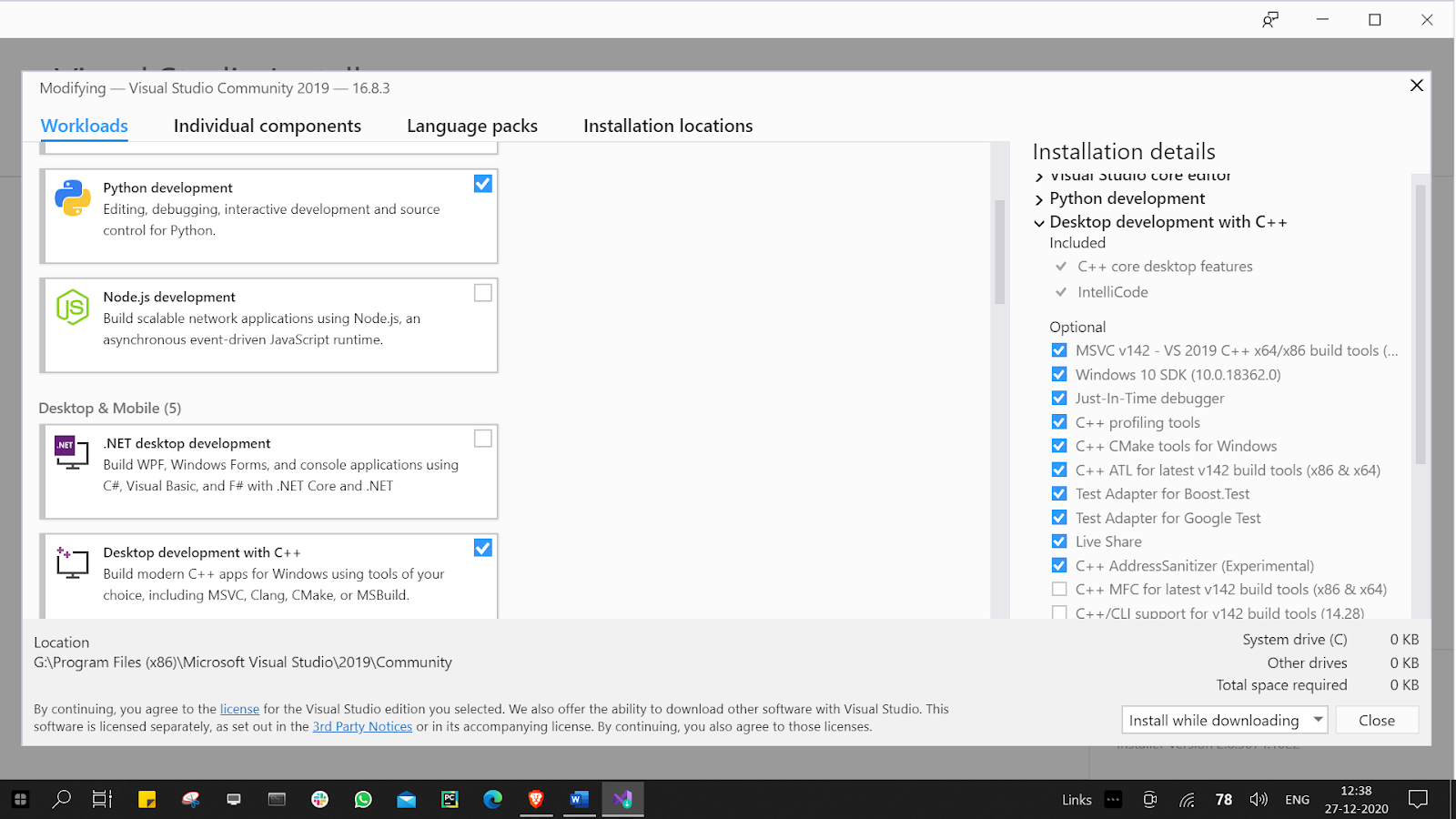
Select Python development and Desktop development with C++ package too.
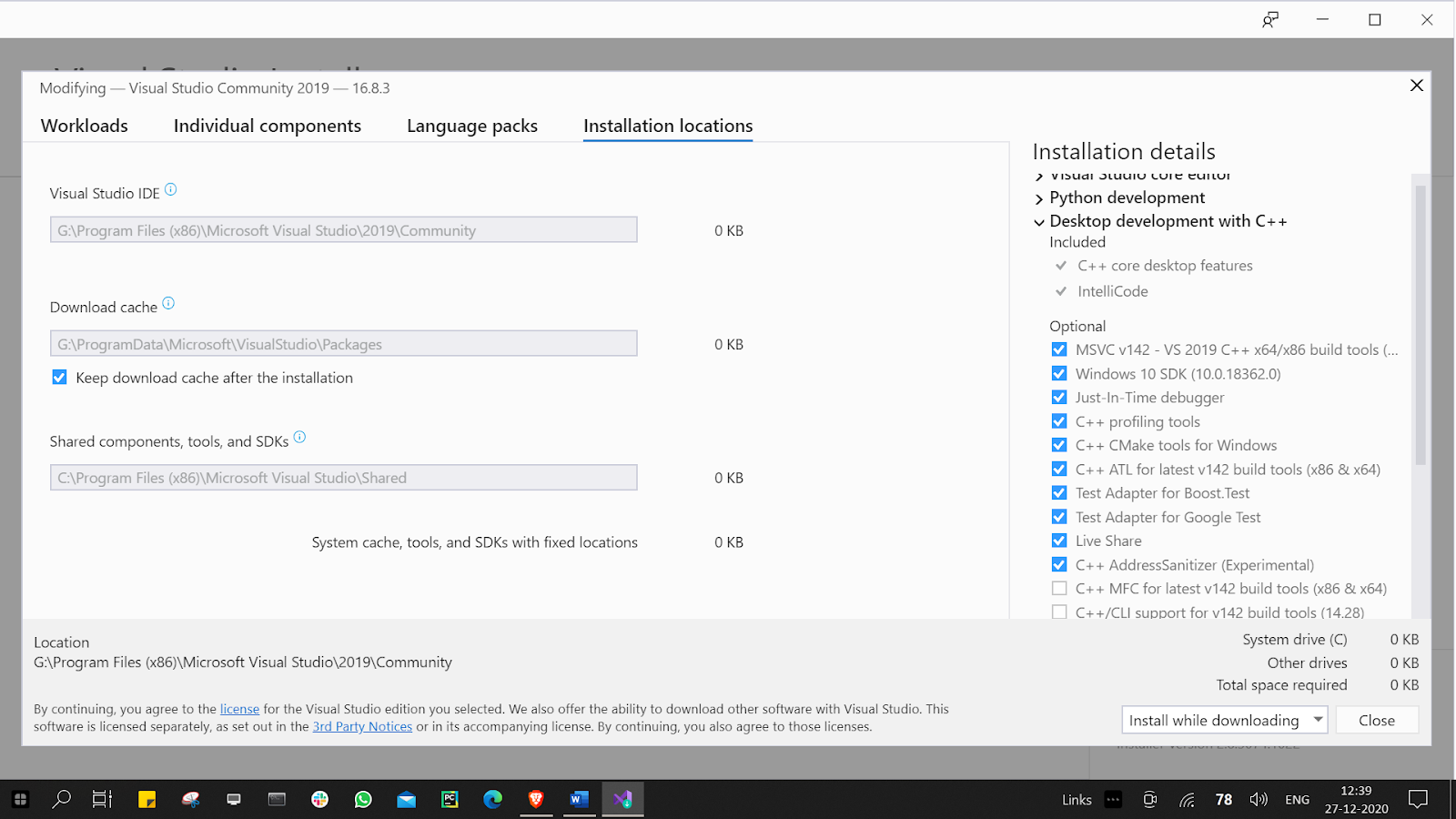
Now this will take a while to finish Installing and it will take quite some Gigs on C Drive. To save some space in C Drive, go to Installation location and you can select different Drive for top two options: You can see in below I have changed path to G drive.
Step 5: Go to Darknet\build\darknet open darknet_no_gpu.sln file with Visual Studio
When you open, Visual Studio will ask you to download two more dependencies. This will take a little more time to complete.
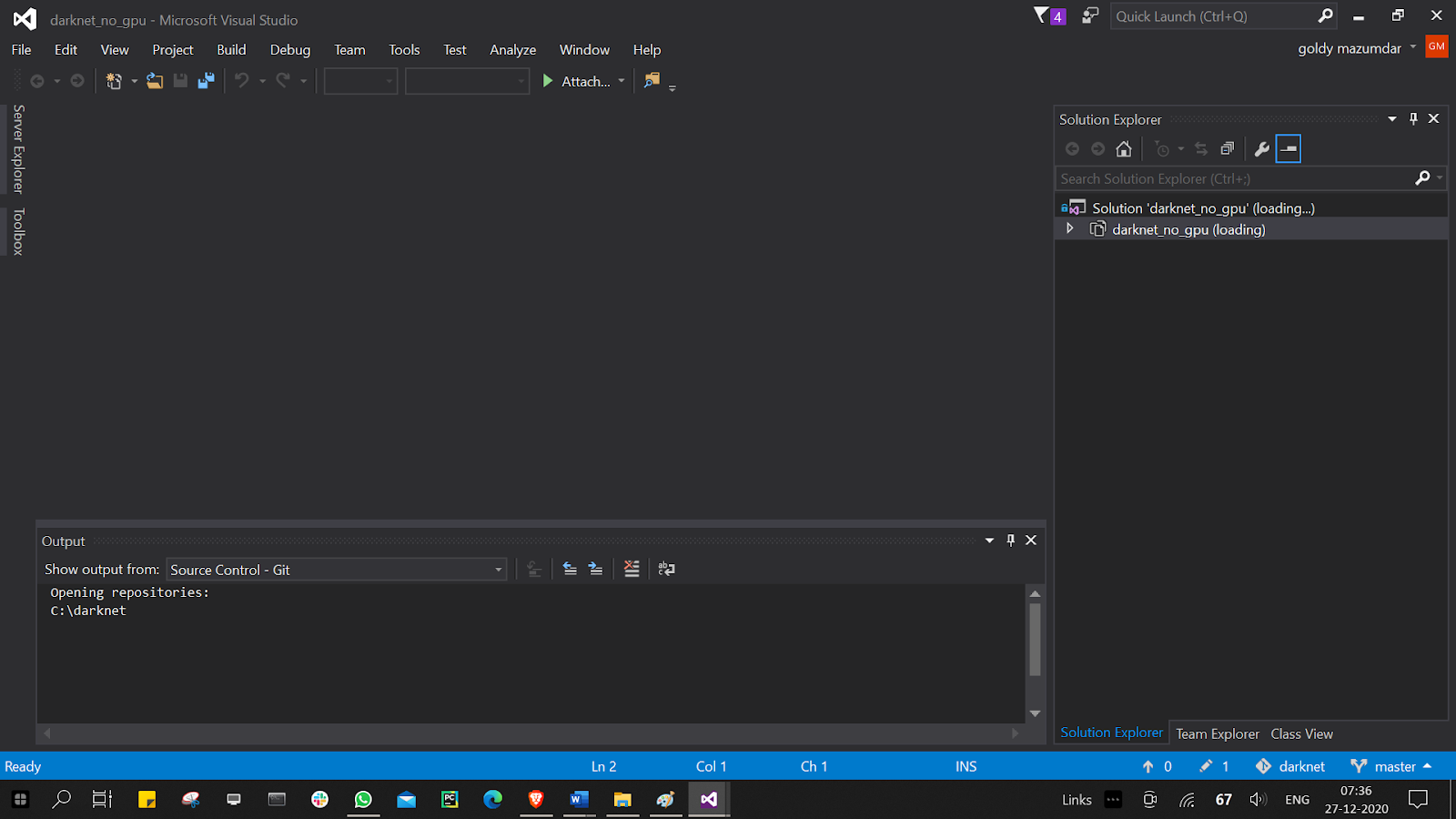
Change Debug option to Release

Then click the .sln file once in Solution Explorer window so that it is selected (make sure it is collapsed)
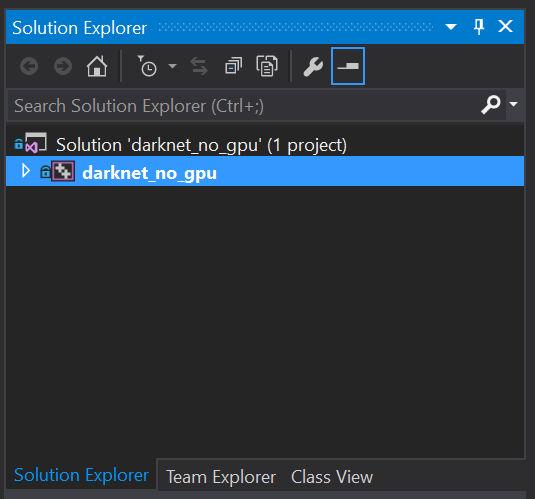
Next go to Build option and click Build darknet_no_gpu
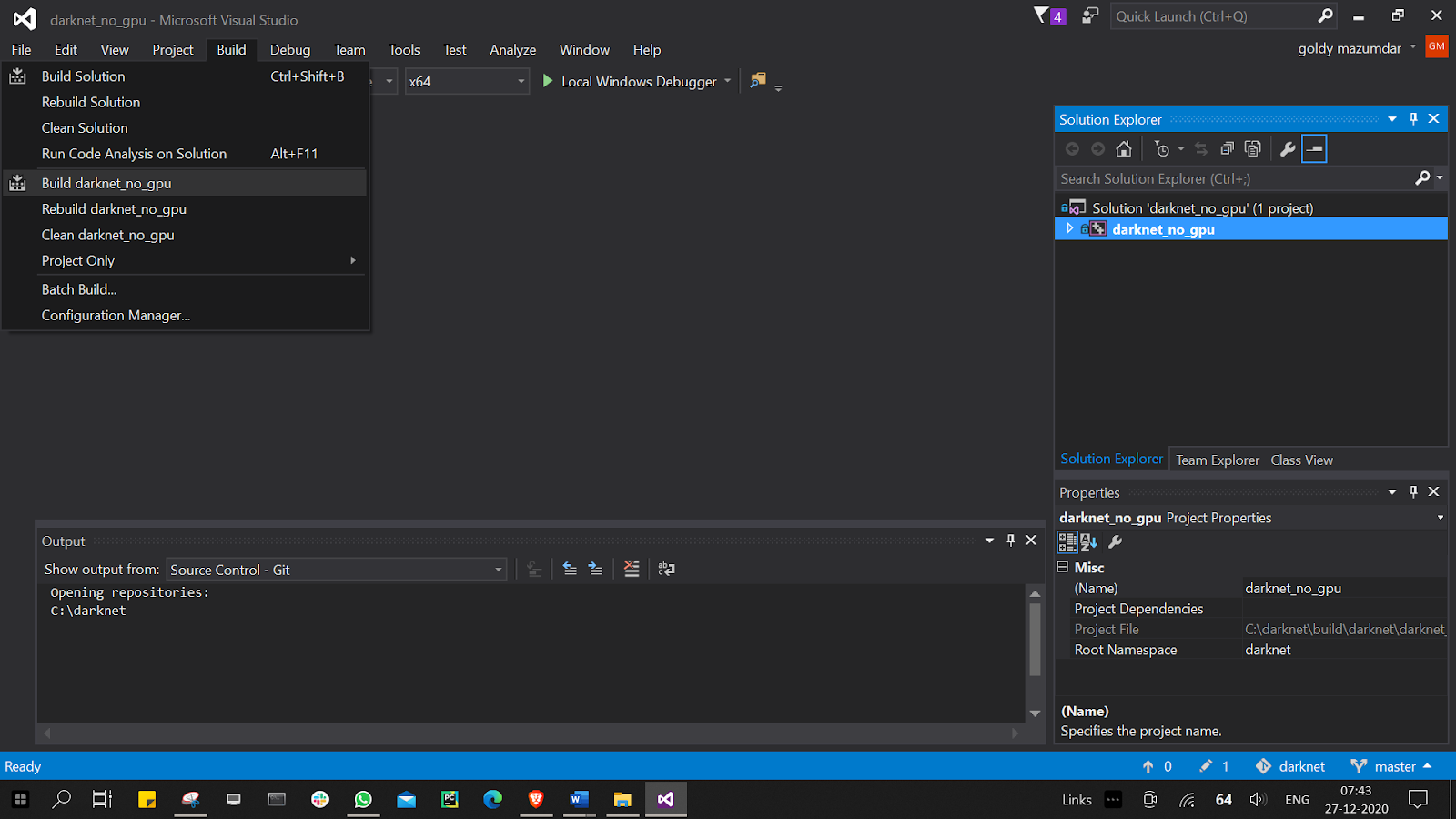
Process will end showing following message:
========== Build: 1 succeeded, 0 failed, 0 up-to-date, 0 skipped ==========
Step 6: Now go to darknet\build\darknet\x64 folder and you will see darknet_no_gpu.exe has been created.
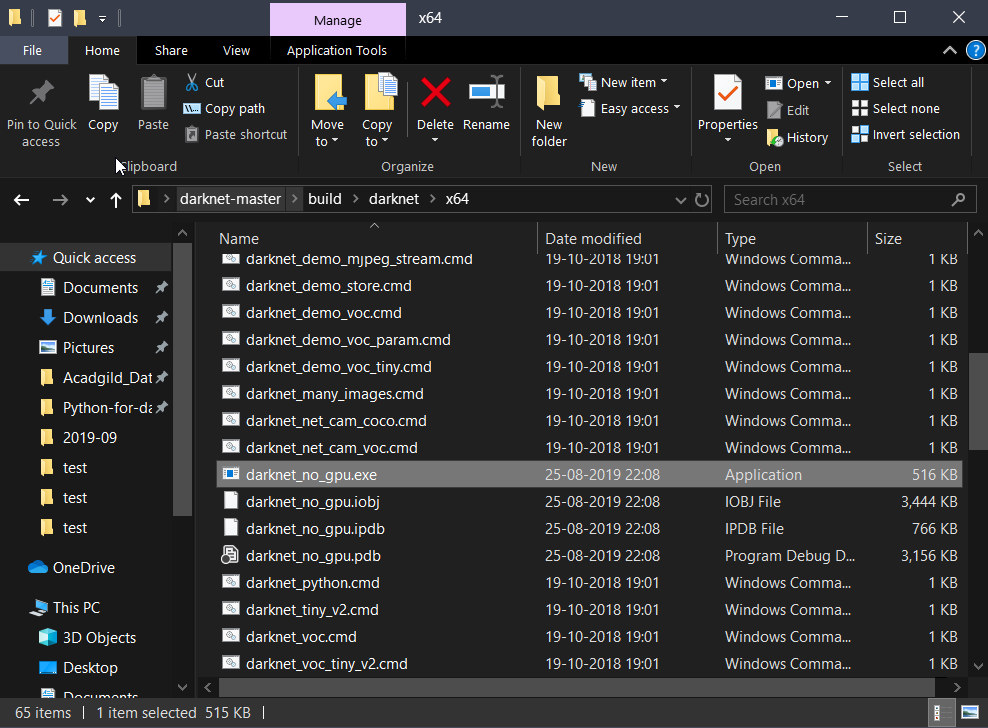
If you have successfully completed this point. Congratulations have successfully installed Darknet in your Windows 10 system.
- From Humanoid Robots to Telecom Trials, 12 Major Announcements at NVIDIA GTC Berlin 2026
- Anyone Can Make a Robot Move, Few Can Make It Stop
- After ISRO’s PSLV Failure, TakeMe2Space Looks to SpaceX for Reliable Launch
- Why AI Agents are the Next Frontier in Quantum Security
- Physical AI Squeezes Labour Market, And Low-Skilled Immigrant Jobs May Be First to Fall
- Rocket Math Isn’t Mathing: Why India’s Space Launches are Expensive