

5 min
The progress of the Python programming language has been immensely significant in the last ten years. According to IEEE Spectrum 2017 magazine, it is ranked no.1 among other popular programming languages. In addition to this, Python is slowly gaining traction in data science community especially with machine learning (ML). The prime reason for this, is the ease of the programming language over others in terms of incorporating ML concepts.
When it comes to providing a development environment for Python, there are many notebook software which facilitate programming as well as help with data science in Python, such as Pycharm, Apache Zeppelin, Rodeo and many more. One popular notebook is the Jupyter Notebook -- sometimes referred to as, Jupyter. It was the offshoot project of IPython in 2014. Some of its features include statistical modeling, data visualisation and support for machine learning. The community for Jupyter has grown over time due to its data science features. The popularity was so fast that in 2017, it led to the creation of JupyterLab, a soon-to-be successor of Jupyter. It is still undergoing beta stage testing for its final release. In Feb 2018, it was fully made available to the users. In this article, we take a brief look at what exactly is the software application.
JupyterLab is an open-source web application primarily designed to provide a user interface based on Jupyter Notebook. The features are similar to that of the latter, such as text editor, web browser support and many more, except that it offers improved support for third party extensions. The installation can be done using simple Python code for conda and pip software package. The packages are available for Windows, Mac and Linux operating systems(OS), and is necessary to run JupyterLab. Also, one needs to have the latest version of Jupyter Notebook installed (version 5.3 or above).
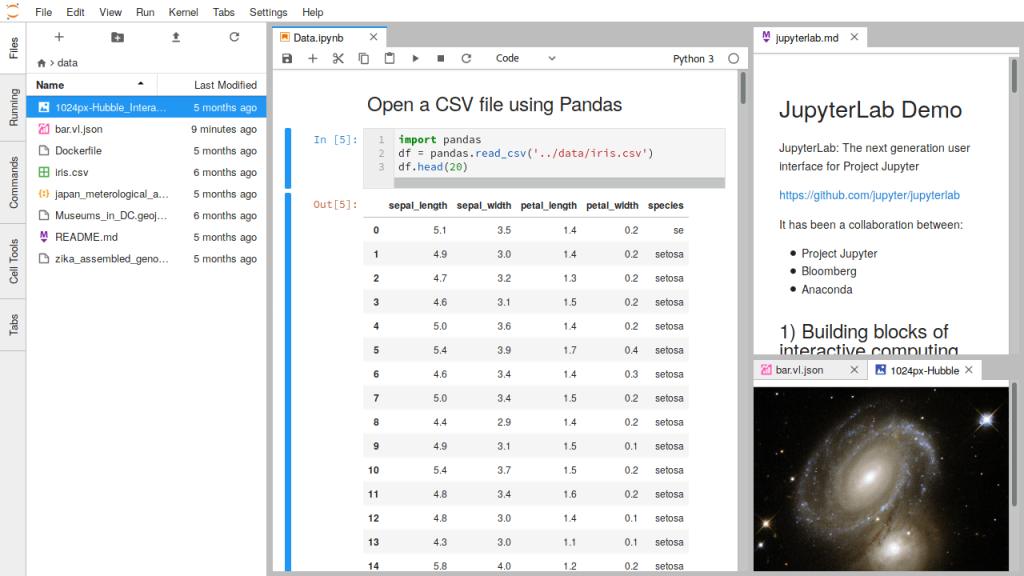
The User Interface
The typical syntax-completion and object tooltip inspection features remain the same for JupyterLab when compared to Jupyter, but come with enhancements such as additional information when working on these features. This would aid developers to deal with context switching at the processor level. Another interesting aspect is the improved web-browser developer tools which helps in integrating cloud-based services for data analytics. JupyterLab has additional features such as ‘drag-and-drop cells option in the notebook, single document mode, multiple tab views among others
Consoles Instead Of Notebooks
Jupyter Notebook usually runs live code in a document called notebook (.ipynb file) that contain text, equations, images and many more forms of data that is visually richer. The code can be viewed in multiple instances with synchronisation among the data. However in JupyterLab the user can use code consoles, in which the multiple code run directly on a kernel rather than on the notebook interface. Code consoles also help the users inspect the live code on the kernel. The kernel should be specified while creating a console. In addition, JupyterLab also features terminals to handle OS shell (commonly known as system shell) to assist in running the Jupyter server. Therefore, care should be taken while working on the code by the user since he/she is dealing with tasks at a system level.Formats Supported For Files and Output
Just like Jupyter, JupyterLab support extensions of various file types. The extensions are listed below.- Markdown : .md
- Images : .bmp, .gif, .jpeg, .jpg, .png,.svg
- Tabular data : .csv
- JavaScript : .json
- HTML : .html
- LaTex : .tex
- Documents : .pdf

Your reaction
Discussion
What's your take on this story?
No comments yet — be the first to share your view.