
All species have their ways of communicating. Speaking is an essential skill for human communication. Speech and language are two of the most important aspects that we pay attention to since our childhood. Communicating using language allows us to share our ideas, thoughts, and feelings with others. It has the power to build communities, get the message through to others and either motivate them or get them to tears. People communicate effectively by learning a language, which tells us how they have mastered a complex system of words, structure, and grammar to convey the message to others. It is unique to our species because it provides us with the passage to express and exchange unique ideas and customs within different cultures and societies. By learning a foreign language, one can understand ideas and thoughts distinct from their own culture. By learning the language, it makes it easy to learn the customs of interacting with different societies. Whether it is about talking to your friends, your partner, or your family, having a shared language to communicate with is necessary for all types of interactions.
Language translation is another important aspect when it comes to effective communication. However, the significance of translation in our everyday lives is more multidimensional than we reckon. As the world has advanced in travelling, distance and geography are becoming less of a barrier to doing business. As a result, companies have started to tie up with other companies overseas and have observed the benefit from working overseas. They take advantage of the lower cost of products and services in some countries, the cheap manpower and professional industrial expertise of others, and additional markets to trade in and expand the business.
Although English is a widely spoken language, the world today is just not barred from speaking English.
Different countries have started taking pride in speaking their language and are promoting their culture worldwide through such gestures. Therefore, to communicate and do business with such cultures and get the business through to these countries, one needs to know exactly what they are trying to convey to ease communication and prevent any confusion that prevails. Language translators can help remove these barriers without even the need to learn the language completely. A Translate app can help translate dozens of languages. Some applications provide functionalities such as allowing translation either through text or voice; all one needs to do is ust type, write, or speak into the application. Some even allow you to point your smartphone or device at a sign or menu written in a foreign language to view a live translation. These applications allow one to carry on a back-and-forth conversation with someone, even if you don’t speak the same language.
What is Gradio?
Gradio is an open-source library for Python language that allows you to quickly create easy to use customizable User Interface components for any ML model, API, or arbitrary function with just a few lines of code. The Gradio GUI can be integrated directly into your Python notebook, and the link for the created GUI can be shared with anyone. The components can easily be wrapped around TensorFlow or PyTorch models, which allows for creating a good mix and match of components to support a wide spectrum of combinations of inputs and output. Jupyter, PyTorch, scikit-learn, and Matplotlib are some of the most popular tools integrated with Gradio. Gradio can be installed directly through pip. Creating a Gradio interface only requires adding a couple of lines of code to your project. You can choose from a variety of interface types to interface your function. Gradio works well and can process a wide range of media, text, pictures, video, and sound. Aside from being used in ML models, it can well be utilized as python code embeddings. During the application development, you can interactively debug your models and get feedback on the users’ model performance. As a result, you can improve your model faster.
Getting Started with Language Translator App
In this article, we will try to implement a Language Translator App Using The Gradio and its Transformer Model, translate a text of a different language using a translator pipeline and build a lightweight app that translates text into a specified language in realtime. The following implementation is partially inspired by a video tutorial on Gradio whose link can be found here.
Installing Dependencies
The first step to building our language translator app model will be to install all the necessary dependencies. Here we are installing the pytorch long term stable version for our model which will help us with ease of processing. To try and find out the combination that suits best for your system, you can follow the link here to get the appropriate command.
#installing the dependencies
!pip install torch==1.8.1+cu111 torchvision==0.9.1+cu111 torchaudio===0.8.1 -f https://download.pytorch.org/whl/lts/1.8/torch_lts.html
Installing the Gradio Transformer
Next up, we will install the Gradio transformer and set up our model further. This will provide us with a User Interface to interact with our model. To do so, you can run the following command,
#installing the gradio transformer
!pip install transformers ipywidgets gradio --upgrade
Importing the Libraries
Importing our required library and the transformer model for ease of processing,
#importing the libraries
import gradio as gr                   # UI library
from transformers import pipeline     # Transformers pipeline
Creating The Model
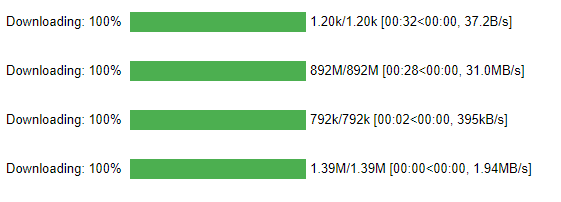
Now that we have everything ready, we will start implementing the model. For this, we will first import a Pretrained Translation Pipeline Model by HuggingFace, which we will be using. To use it, we first need to create a pipeline class and then pass it with functionality we want to use. We will be using the translation function and defining our initial language and o what it will be translated to. Here I’ll be translating from English to French.
#Installing the Pre Trained HuggingFace Pipeline and setting up for En To Fr
translation_pipeline = pipeline('translation_en_to_fr')
Output :
Passing a line to translate and testing if it is working properly,
#testing the first result
results = translation_pipeline('I love to travel the world')
Displaying the Translated text result
#displaying the result
results[0]['translation_text']
Output :
J'aime la crème glacée
Creating a Gradio Function and Interface
We will be next creating a user interface using Gradio; for this, we will now set up our translation transformer into Gradio.
#creating a fuction called translate
def translate_transformers(from_text):
 results = translation_pipeline(from_text)
 return results[0]['translation_text']
Checking the results by passing a single line of text to see if it works in Gradio,
#translation through Gradio
translate_transformers('My name is Victor')
Output :
Mon nom est VictorWe can see that the model successfully translates our text on initial testing.
Now we will be setting up the UI space; for this, we will create two textboxes to get our input and output, specifically using the Gradio Interface class. We have also placed texts which tell us which textbox does what. Gradio makes it very easy to set up such an interface and add components to it with just a few lines of code!
#Creating the User Interface Space
interface = gr.Interface(fn=translate_transformers,
                         inputs=gr.inputs.Textbox(lines=2, placeholder='Text to translate'),
                        outputs='text')
With the interface created and setup lets execute it,
#launching the interface
interface.launch()
When launched through jupyter notebook, it might take you to a separate browser window where it will run the created user interface. However, for users of colab notebook, it will self detect and run the interface within the notebook itself.
Output :

As we can see, our interactive interface application has now been created using Gradio components. The results show us that we have successfully converted an English language text into French using the translation pipeline.
EndNotes
This article tried to understand what it takes to build a lightweight language translation application using Gradio and tried to explore the Gradio Components. I would recommend using Gradio and creating highly user-friendly and interactive application interfaces with just a few lines of code. The following implementation can be found as a colab notebook using the link here.
Happy Learning!

Your reaction
Discussion
What's your take on this story?
No comments yet — be the first to share your view.