

Kornia is an open-source Python library inspired by OpenCV designed to handle generic Computer Vision tasks. It was introduced by Edgar Riba, Dmytro Mishkin, Daniel Ponsa, Ethan Rublee and Gary Bradski in October, 2019 (research paper).
Kornia leverages PyTorch library at its backend in terms of model’s efficiency and reverse-mode auto-differentiation for defining and computing complex functions’ gradients. It comprises a subset of packages having operators that act as an input to neural networks for performing a wide range of tasks such as image transformations, depth estimation, epipolar geometry, filtering and edge-detection applicable on high-dimensional tensors. Unlike conventional CPU-based CV libraries such as torchvision and scikit-image, several standard deep learning functions can be implemented on GPUs using Kornia.
Kornia bridges the gap between two simple yet powerful libraries namely, OpenCV and PyTorch. Though solely based on traditional CV solutions like torchvision, tf.image, PIL and skimage, it enables differentiable programming for CV applications by utilizing the crucial properties of PyTorch like GPU hardware acceleration, differentiability and distributed data-flows.
The following table compares Kornia with some important CV libraries/modules:
| Library/Module | CPU supported | GPU supported | Batch Processing | Differentia-ble | Distributed | Supports multidimensional array |
| torchvision | Yes | No | No | No | No | No |
| scikit-image | Yes | No | No | No | No | No |
| opencv | Yes | Yes | No | No | No | No |
| tf.image | Yes | Yes | Yes | Yes | Yes | Yes |
| Kornia | Yes | Yes | Yes | Yes | Yes | Yes |
Source of above summary: Research paper
Components of the library
- kornia.augmentation - module for GPU-based image augmentation
- kornia.utils - image to tensor conversion utilities and metrics
- kornia.color - module for color space conversions
- kornia.morphology - module for morphological image transformations
- kornia.losses - collection of several loss functions
- kornia.geometry - for geometric CV tasks like image conversion using various camera models
- kornia.enhance - module for intensity transformations and normalization
- kornia.filters - for edge detection and image filtering use cases
- kornia.feature - for feature setection
Practical implementation
Here, we demonstrate three use cases of Kornia - blurring a custom image, changing its color space, and adjusting its colors. The code is test on Google colab with Python 3.7.10 and Kornia 0.4.1 versions.
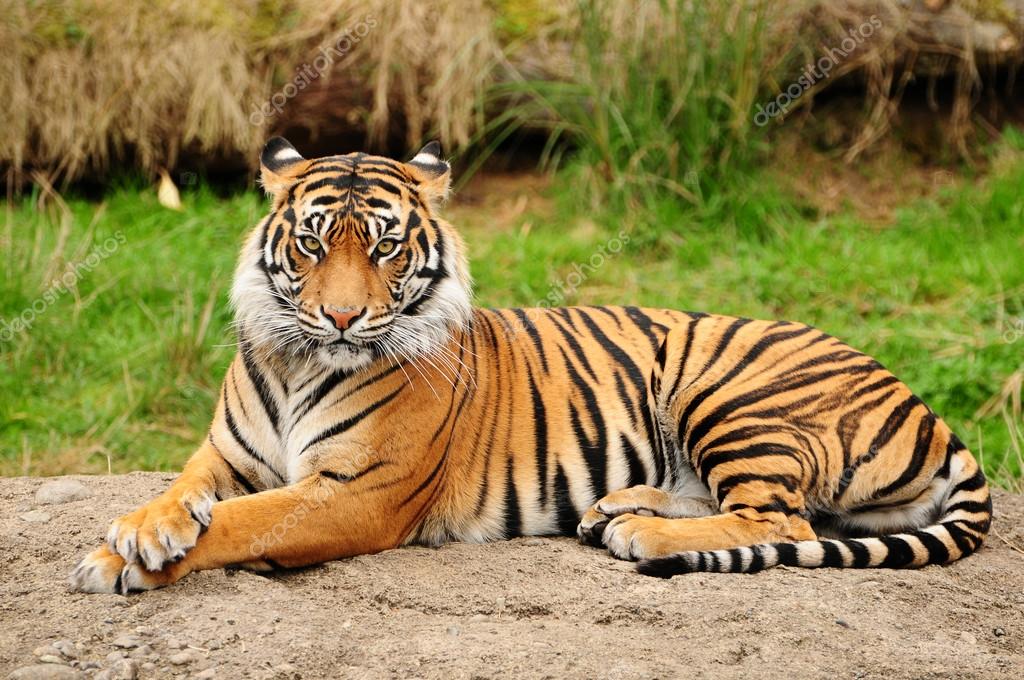
We have used the following image for demonstration:

Step-wise explanation of the code is as follows:
First, install the library using pip command.
!pip install kornia
Import required libraries and modules
 import torch
 import torchvision
 import kornia
 import cv2
 import numpy as np
 import matplotlib.pyplot as plt
Image blurring using Kornia
- Read the input image
 #Read the image using OpenCV and convert it to a numpy array
 input_image: np.ndarray = cv2.imread('img2.jpg')
 #Convert the image color space from BGR to RGB
 input_image = cv2.cvtColor(input_image, cv2.COLOR_BGR2RGB)
- Convert the image to a torch 4D tensor
tensor_image: torch.tensor = kornia.image_to_tensor(input_image, keepdim=False)
- Create an operator that blurs the tensor image using Gaussian filter
gaussian = kornia.filters.GaussianBlur2d((11, 11), (10.5, 10.5))
Where, (11,11) is the size of the kernel and (1.05,10.5) is the standard deviation of the kernel
- Convert the tensor image to float type and apply the gaussian operator defined in previous step to blur the image
blur_image: torch.tensor = gaussian(tensor_image.float())
- Convert the blurred tensor image back to a numpy array
final_blur_image: np.ndarray = kornia.tensor_to_image(blur_image.byte())
- Plot the input and output images
 fig, ax = plt.subplots(1, 2, figsize=(16, 10))
 ax = ax.ravel() #flatten the axis to a 1D array
 #Original image
 ax[0].axis('off')  #turn off the axis lines and labels
 ax[0].set_title('Original image')  #Title of image
 ax[0].imshow(input_image)   #Display the image
 #Blurred image
 ax[1].axis('off')    #turn off the axis lines and labels
 ax[1].set_title('Blurred image')   #Title of image
 ax[1].imshow(final_blur_image)  #Display the image
Output:

Color space conversion using Kornia
- Read the input colored image and convert it to a numpy array
bgr_image: np.ndarray = cv2.imread('img2.jpg', cv2.IMREAD_COLOR)
- Convert the image to a torch tensor
tensor_bgr: torch.Tensor = kornia.image_to_tensor(bgr_image, keepdim=False)
- Define functions to flip the image horizontally and vertically and rotate it by 180 degrees.
 def horizontal_flip(input: torch.Tensor) -> torch.Tensor:
     return torch.flip(input, [-1])
 #torch.flip() reverses the order of the input tensor image along given axis
 def vertical_flip(input: torch.Tensor) -> torch.Tensor:
     return torch.flip(input, [-2])
 def rotate_180(input: torch.Tensor) -> torch.Tensor:
     return torch.flip(input, [-2, -1])
- Define a function to plot a batch of images
 def imshow(input: torch.Tensor):
 #Create a grid with 2 rows
 output: torch.Tensor = torchvision.utils.make_grid(input,
 nrow=2, padding=5)
 #Convert the grid of images to numpy ndarray
       output_np: np.ndarray = kornia.tensor_to_image(output)
       plt.imshow(output_np)  #Plot the grid
       plt.axis('off')  #Turn off the axis lines and labels
       plt.show()   #Display the grid
- Create a batch of images from BGR image
#Apply the functions defined in step (3) to the input tensor image and then #concatenate resulting tensors
 batch_bgr = torch.cat([tensor_bgr, horizontal_flip(tensor_bgr), vertical_flip(tensor_bgr), rotate_180(tensor_bgr)])
 #Display the batch of images
 imshow(batch_bgr)
Output:

- BGR to RGB color space conversion
 batch_rgb = kornia.bgr_to_rgb(batch_bgr)  #conversion
 imshow(batch_rgb) #display the resulting
Output:

- RGB to Grayscale color space conversion
 batch_gray = kornia.rgb_to_grayscale(batch_rgb.float() / 255.)
 imshow(batch_gray)  #display the grayscale image
Output:

- RGB to HSV (Hue, Saturation, Value) color space conversion
 batch_hsv = kornia.rgb_to_hsv(batch_rgb.float() / 255.)
 imshow(batch_hsv[:, 2:3])  #display HSV image
Output:

Color adjustment
- Read the input image in BGR format
bgr_image: np.ndarray = cv2.imread('img2.jpg', cv2.IMREAD_COLOR)
- Convert input image to torch tensor
tensor_bgr: torch.Tensor = kornia.image_to_tensor(bgr_image)
Convert the image from BGR to RGB
tensor_rgb: torch.Tensor = kornia.bgr_to_rgb(tensor_bgr)
- Expand the image
 tensor_rgb = tensor_rgb.expand(4, -1, -1, -1)
 # 4 x Channels x Height x Width
 tensor_rgb = tensor_rgb.float() / 255. #Normalize the expanded image
Define a function to create a batch of images
 def imshow(input: torch.Tensor):
 #create grid having 2 rows of images
     output: torch.Tensor = torchvision.utils.make_grid(input, nrow=2,
     padding=5)
 #Convert tensor images to numpy ndarray
     output_np: np.ndarray = kornia.tensor_to_image(output)
 #Plot the grid of images
     plt.imshow(output_np)
     plt.axis('off')
     plt.show()
Display the batch of RGB images
imshow(tensor_rgb)
Output:

- Adjust brightness of the batch images
 tensor_brightness: torch.Tensor = kornia.adjust_brightness(tensor_rgb, 0.6)
 #Where, 0.6 is the factor to adjust brightness of each element in the batch
 imshow(tensor_brightness)  #display the resulting batch
Output:

- Adjust contrast of the batch images
 tensor_contrast: torch.Tensor = kornia.adjust_contrast(tensor_rgb, 0.2)
 #0.2 is the contrast adjustment factor per batch element
 imshow(tensor_contrast)  #dispaly the resulting batch
Output:

- Adjust gamma correction of the images
 tensor_gamma: torch.Tensor = kornia.adjust_gamma(tensor_rgb, gamma=3., gain=1.5)
 #where, ‘gamma’ is a non-negative number and ‘gain’ is the constant multiplier
 imshow(tensor_gamma)  #display resulting batch
Output:

- Adjust saturation level of the batch images
 tensor_saturated: torch.Tensor = kornia.adjust_saturation(tensor_rgb, 0.2)
 #where 0.2 is the saturation factor
 imshow(tensor_saturated)  #display the resulting batch
Output:

- Adjust hue of the images
 tensor_hue: torch.Tensor = kornia.adjust_hue(tensor_rgb, 0.5)
 #where 0.5 gives measure of how much to shift the hue channel
 imshow(tensor_hue)  #display the resulting batch
Output:

- Google colab notebook of the above-explained implementation is available here.
References
To get in-depth understanding of the Kornia library, refer to the following web links:

Your reaction
Discussion
What's your take on this story?
No comments yet — be the first to share your view.