
Using computer vision, we can understand how the images and videos are stored and manipulated, and also it helps us retrieve data from images and videos. Computer vision is part of artificial intelligence; it plays a major role in autonomous vehicles, object detection, robotics, and application. It is an open-source library mainly used for image processing and machine learning. It gives better output for real-time data. We can process images and videos so that implemented algorithms can identify objects such as statues, pedestrians, animals, vehicles, human faces and so on. Moreover, with the help of other data analysis libraries, it can process images and videos according to one's desires.
Today in this article, we will use OpenCV for pose estimation and the newly launched google model for pose estimation, i.e., MoveNet.
What is Pose Estimation?
Human pose estimation is a CV technique used to predict a person’s body parts or joints position. This can be done by defining the human body joints like wrist, shoulder, knees, eyes, ears, ankles, arms, also called key points in images and videos. Then, when a picture or video comes in as input to the pose estimator model, it identifies the coordinates of those detected body parts as output and a confidence score indicating continuity of the estimations.
At this time, we have two types of pose estimation, i.e. 2D and 3D. 2D involves the extraction of X, Y coordinates for each key point in the RGB image, whereas 3D involves X, Y, Z coordinates of each key point. Google's MoveNet model is based on 3D estimation. The operation takes place in a phase-wise manner like; first, the RGB image is fed to convolutional network as input, then pose model is applied to detect the poses, key points, pose confidence score and key point confidence score from the model outputs.
Let’s see briefly what exactly the estimator returns when the inference takes place;
Poses:
The estimator returns a pose object with a complete list of key points and an instance-level confidence score for a detected person.
Key point:
It contains the estimated parts of a person: nose, eyes, ears with coordinate position, and key point confidence score.
Confidence score:
This value indicates the overall confidence in the estimated person’s pose and key points from the image with values between 0 and 1 based on which model decides which one is to be shown and which one is hidden.
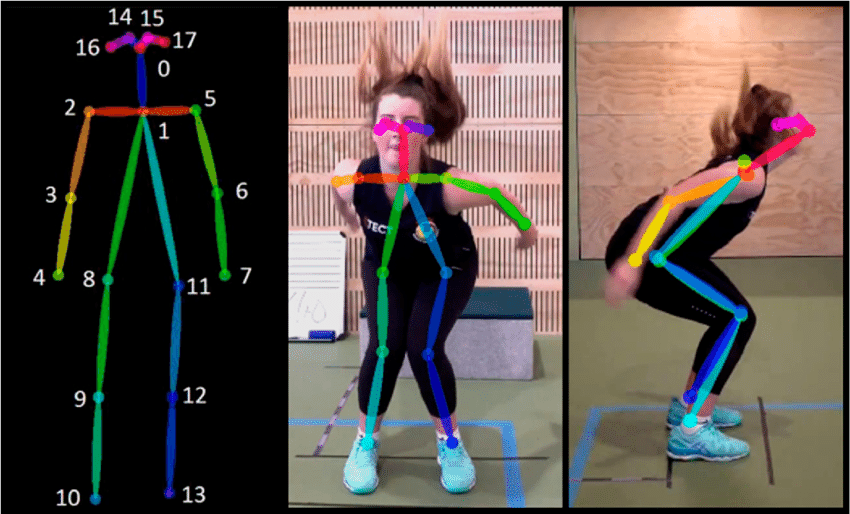
The below shows the 17 points that the pose estimator can identify.
Implementation of MoveNet:
MoveNet is an ultra-fast and accurate estimator which detects the 17 key points of a body part, as shown above. This model is hosted on Tensorflow-Hub along with its two variants called as lighting and thunder. Lightning is used where critical latency application is hosted, while thunder variant where high accuracy requires. Both the estimators run for more than 30 FPS on most modern machines and mobile phones.
Install & import all dependencies:
 !pip install -q imageio
 !pip install -q opencv-python
 !pip install -q git+https://github.com/tensorflow/docs
 import tensorflow as tf
 import tensorflow_hub as hub
 from tensorflow_docs.vis import embed
 import numpy as np
 import cv2
 from matplotlib.collections import LineCollection
 import matplotlib.patches as patches
 import matplotlib.pyplot as plt
 import imageio
 from IPython.display import HTML, display
Helper functions:
Helper functions contain all 17 mapping points which model can detect and some major user-defined functions such as display key_points_ edges and drawing prediction on image.
 # Dictionary to map joints of body part
 KEYPOINT_DICT = {
     'nose':0,
     'left_eye':1,
     'right_eye':2,
     'left_ear':3,
     'right_ear':4,
     'left_shoulder':5,
     'right_shoulder':6,
     'left_elbow':7,
     'right_elbow':8,
     'left_wrist':9,
     'right_wrist':10,
     'left_hip':11,
     'right_hip':12,
     'left_knee':13,
     'right_knee':14,
     'left_ankle':15,
     'right_ankle':16
 }
 # map bones to matplotlib color name
 KEYPOINT_EDGE_INDS_TO_COLOR = {
     (0,1): 'm',
     (0,2): 'c',
     (1,3): 'm',
     (2,4): 'c',
     (0,5): 'm',
     (0,6): 'c',
     (5,7): 'm',
     (7,9): 'm',
     (6,8): 'c',
     (8,10): 'c',
     (5,6): 'y',
     (5,11): 'm',
     (6,12): 'c',
     (11,12): 'y',
     (11,13): 'm',
     (13,15): 'm',
     (12,14): 'c',
     (14,16): 'c'
 }
 def _keypoints_and_edges_for_display(keypoints_with_score,height,
                                      width,keypoint_threshold=0.11):
   """Returns high confidence keypoints and edges"""
   keypoints_all = []
   keypoint_edges_all = []
   edge_colors = []
   num_instances,_,_,_ = keypoints_with_score.shape
   for id in range(num_instances):
     kpts_x = keypoints_with_score[0,id,:,1]
     kpts_y = keypoints_with_score[0,id,:,0]
     kpts_scores = keypoints_with_score[0,id,:,2]
     kpts_abs_xy = np.stack(
         [width*np.array(kpts_x),height*np.array(kpts_y)],axis=-1)
     kpts_above_thrs_abs = kpts_abs_xy[kpts_scores > keypoint_threshold,: ]
     keypoints_all.append(kpts_above_thrs_abs)
     for edge_pair,color in KEYPOINT_EDGE_INDS_TO_COLOR.items():
       if (kpts_scores[edge_pair[0]] > keypoint_threshold and
           kpts_scores[edge_pair[1]] > keypoint_threshold):
         x_start = kpts_abs_xy[edge_pair[0],0]
         y_start = kpts_abs_xy[edge_pair[0],1]
         x_end = kpts_abs_xy[edge_pair[1],0]
         y_end = kpts_abs_xy[edge_pair[1],1]
         lien_seg = np.array([[x_start,y_start],[x_end,y_end]])
         keypoint_edges_all.append(lien_seg)
         edge_colors.append(color)
   if keypoints_all:
     keypoints_xy = np.concatenate(keypoints_all,axis=0)
   else:
     keypoints_xy = np.zeros((0,17,2))
   if keypoint_edges_all:
     edges_xy = np.stack(keypoint_edges_all,axis=0)
   else:
     edges_xy = np.zeros((0,2,2))
   return keypoints_xy,edges_xy,edge_colors
 def draw_prediction_on_image(
     image, keypoints_with_scores, crop_region=None, close_figure=False,
     output_image_height=None):
   """Draws the keypoint predictions on image"""
   height, width, channel = image.shape
   aspect_ratio = float(width) / height
   fig, ax = plt.subplots(figsize=(12 * aspect_ratio, 12))
   # To remove the huge white borders
   fig.tight_layout(pad=0)
   ax.margins(0)
   ax.set_yticklabels([])
   ax.set_xticklabels([])
   plt.axis('off')
   im = ax.imshow(image)
   line_segments = LineCollection([], linewidths=(4), linestyle='solid')
   ax.add_collection(line_segments)
   # Turn off tick labels
   scat = ax.scatter([], [], s=60, color='#FF1493', zorder=3)
   (keypoint_locs, keypoint_edges,
    edge_colors) = _keypoints_and_edges_for_display(
        keypoints_with_scores, height, width)
   line_segments.set_segments(keypoint_edges)
   line_segments.set_color(edge_colors)
   if keypoint_edges.shape[0]:
     line_segments.set_segments(keypoint_edges)
     line_segments.set_color(edge_colors)
   if keypoint_locs.shape[0]:
     scat.set_offsets(keypoint_locs)
   if crop_region is not None:
     xmin = max(crop_region['x_min'] * width, 0.0)
     ymin = max(crop_region['y_min'] * height, 0.0)
     rec_width = min(crop_region['x_max'], 0.99) * width - xmin
     rec_height = min(crop_region['y_max'], 0.99) * height - ymin
     rect = patches.Rectangle(
         (xmin,ymin),rec_width,rec_height,
         linewidth=1,edgecolor='b',facecolor='none')
     ax.add_patch(rect)
   fig.canvas.draw()
   image_from_plot = np.frombuffer(fig.canvas.tostring_rgb(), dtype=np.uint8)
   image_from_plot = image_from_plot.reshape(
       fig.canvas.get_width_height()[::-1] + (3,))
   plt.close(fig)
   if output_image_height is not None:
     output_image_width = int(output_image_height / height * width)
     image_from_plot = cv2.resize(
         image_from_plot, dsize=(output_image_width, output_image_height),
          interpolation=cv2.INTER_CUBIC)
   return image_from_plot
def to_gif(images, fps):
"""Converts image sequence (4D numpy array) to gif."""
imageio.mimsave('./animation.gif', images, fps=fps)
return embed.embed_file('./animation.gif')
def progress(value, max=100):
return HTML("""
""".format(value=value, max=max))
Load model from Tensorflow-Hub:
The model has four variants including Tensorflow Lite versions; those are
"movenet_lightning", "movenet_thunder", "movenet_lightning.tflite", "movenet_thunder.tflite"
 model_name = "movenet_thunder"
 if "tflite" in model_name:
   if "movenet_lightning" in model_name:
     !wget -q -O model.tflite https://tfhub.dev/google/lite-model/movenet/singlepose/lightning/3?lite-format=tflite
     input_size = 192
   elif "movenet_thunder" in model_name:
     !wget -q -O model.tflite https://tfhub.dev/google/lite-model/movenet/singlepose/thunder/3?lite-format=tflite
     input_size = 256
   else:
     raise ValueError("Unsupported model name: %s" % model_name)
   interpreter = tf.lite.Interpreter(model_path="model.tflite")
   interpreter.allocate_tensors()
   def movenet(input_image):
     """Runs detection on an input image"""
     input_image = tf.cast(input_image, dtype=tf.float32)
     input_details = interpreter.get_input_details()
     output_details = interpreter.get_output_details()
     interpreter.set_tensor(input_details[0]['index'], input_image.numpy())
     interpreter.invoke()
     keypoints_with_scores = interpreter.get_tensor(output_details[0]['index'])
     return keypoints_with_scores
 else:
   if "movenet_lightning" in model_name:
     module = hub.load("https://tfhub.dev/google/movenet/singlepose/lightning/3")
     input_size = 192
   elif "movenet_thunder" in model_name:
     module = hub.load("https://tfhub.dev/google/movenet/singlepose/thunder/3")
     input_size = 256
   else:
     raise ValueError("Unsupported model name: %s" % model_name)
   def movenet(input_image):
     """Runs detection on an input image"""
     model = module.signatures['serving_default']
     input_image = tf.cast(input_image, dtype=tf.int32)
     outputs = model(input_image)
     keypoint_with_scores = outputs['output_0'].numpy()
     return keypoint_with_scores
Infer the model:
This demonstrates the inference performed on the single image which shows the 17 key points those are identified by the model
 image_path = 'img.jpg'
 image = tf.io.read_file(image_path)
 image = tf.image.decode_jpeg(image)
 input_image = tf.expand_dims(image, axis=0)
 input_image = tf.image.resize_with_pad(input_image, input_size, input_size)
 keypoint_with_scores = movenet(input_image)
 display_image = tf.expand_dims(image, axis=0)
 display_image = tf.cast(tf.image.resize_with_pad(
     display_image, 1280, 1280), dtype=tf.int32)
 output_overlay = draw_prediction_on_image(
     np.squeeze(display_image.numpy(), axis=0), keypoint_with_scores)
 plt.figure(figsize=(5, 5))
 plt.imshow(output_overlay)
 plt.axis('off')
Input image:

Output image:

The model can also estimate Image sequence without sacrificing the original speed of video playback, as shown in the below example.
Original sequence:

Inferred Sequence:

The code for Video Inferencing is included in the Colab notebook link will be in the reference section.
Conclusion:
The pose estimation model is revolutionary tech for the fitness industry. It helps one track the exercise of your body, and according to that nutrition, diet can be planned. This article discussed how the model could identify the 17 different key points of your body through a single image and sequenced images, i.e. videos with low latency, which makes it faster among its category.

Your reaction
Discussion
What's your take on this story?
No comments yet — be the first to share your view.